Google Sheets AI Agents That Autonomously Perform Tasks
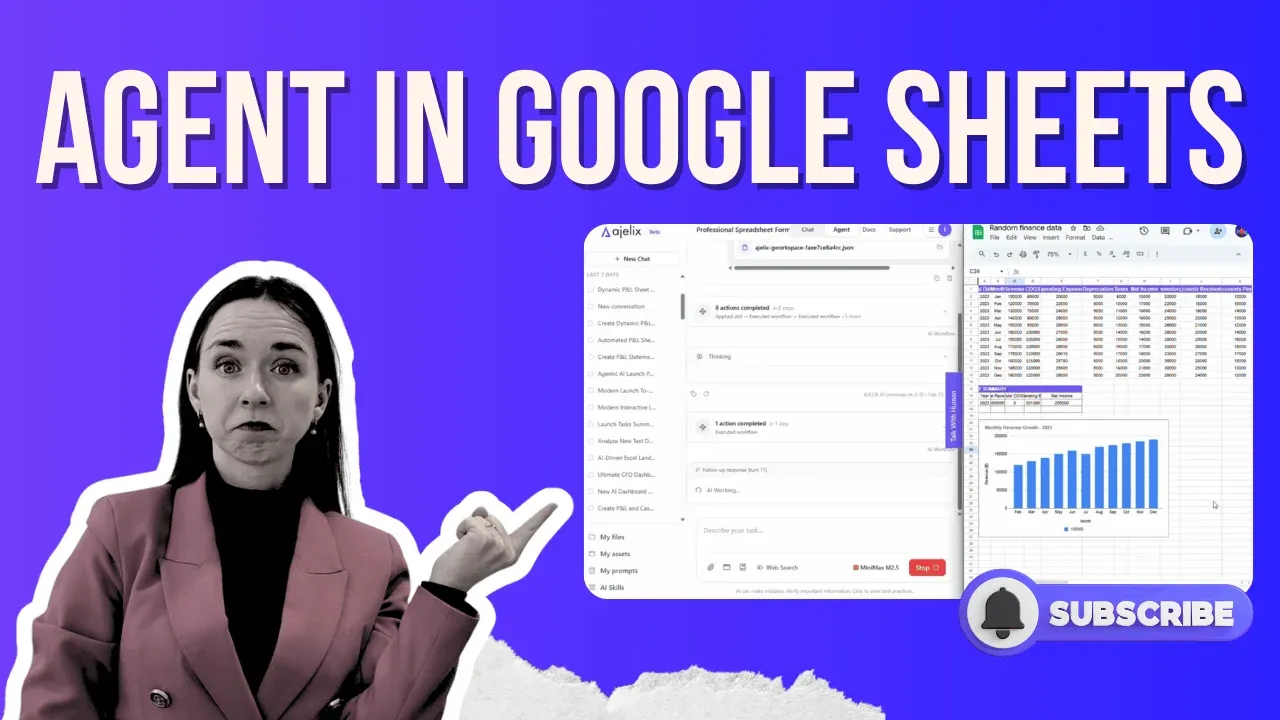
Google Sheets AI agents can autonomously write formulas, format your entire spreadsheet, build interactive charts, calculate financial KPIs, and export a PDF report all from a single text prompt, without you touching a single cell. If you’ve spent hours manually building reports in Google Sheets, this workflow changes everything. The best AI for Google Sheets today isn’t a simple formula autocomplete or a basic Google Sheets AI plugin, it’s a fully agentic system that reads your data, reasons through multi-step tasks, and delivers a publication-ready spreadsheet while you watch.
Below is a practical guide based on two real walkthroughs. Both videos are embedded so you can follow along and replicate the setup yourself.
What Google Sheets AI Agents Can Actually Do
Using AI in Google Sheets goes far beyond a smart autocomplete. A true Google Sheets AI agent works autonomously across an entire workflow:
- Writes real, dynamic formulas, not static values, but live calculations that update when your source data changes
- Formats the entire sheet column widths, brand colors, currency symbols, and conditional formatting for positive and negative values
- Creates interactive charts, like bar charts, trend lines, expense breakdowns; all fully editable, none of them static images
- Calculates financial KPIs, net income, COGS, operating expenses, net cash flow, and P&L totals
- Generates new sheets automatically: a P&L statement, a cash flow analysis, and a yearly summary, each on its own tab
- Exports to PDF so you can send a clean, formatted report to your manager without any additional steps
The entire workflow, from raw data to a formatted multi-sheet financial report with charts, takes the AI roughly 10–15 minutes. Your only job is writing the prompt.
Video 1: AI Builds a Full Financial Report in Google Sheets
This first walkthrough shows a plain data set being transformed into three complete sheets: a Profit & Loss statement, a year-over-year bar chart comparison, and a full cash flow analysis, all created autonomously by a Google Sheets AI agent. Every formula is dynamic, every chart is interactive, and the formatting matches a custom brand color specified in the prompt.
How to Connect an AI Agent to Google Sheets (One-Time Setup)
Before you can start using AI tools for Google Sheets autonomously, you need to grant the agent access to your spreadsheet via the Google Cloud Console. You only do this once per Google Workspace app, so once for Google Sheets, once for Google Docs, once for Slides, and so on. After that initial setup, the connection is permanent and reusable.
You can follow the full setup in the documentation on how to connect Google Workspace Apps, which we created, or watch the video walkthrough with the full flow.
How to Configure the AI Agent for Google Sheets Tasks
The tool used in both walkthroughs is chat.ajelix.com, an AI chat built specifically for agentic AI workflows across office and productivity apps. Here is how to configure it correctly before running any Google Sheets AI task.
1. Use Agent Mode, not Chat Mode
Chat mode is designed for quick questions and light research. Agent mode is built for complex, multi-step workflows like generating files, building spreadsheets, and performing calculations. Always switch to Agent mode when working with Google Sheets.
2. Choose the right AI model
Not all models perform equally well on spreadsheet tasks. For Google Sheets work, prioritize models with high intelligence ratings and those specifically optimized for office and workspace applications. Avoid lower-intelligence models for complex tasks the output will be too vague to be useful.
3. Enable the Google Sheets AI skill
In the platform settings, make sure the Google Sheets skill is toggled on. Without it, the agent will not be able to interact with your spreadsheet, no matter how well you write the prompt.
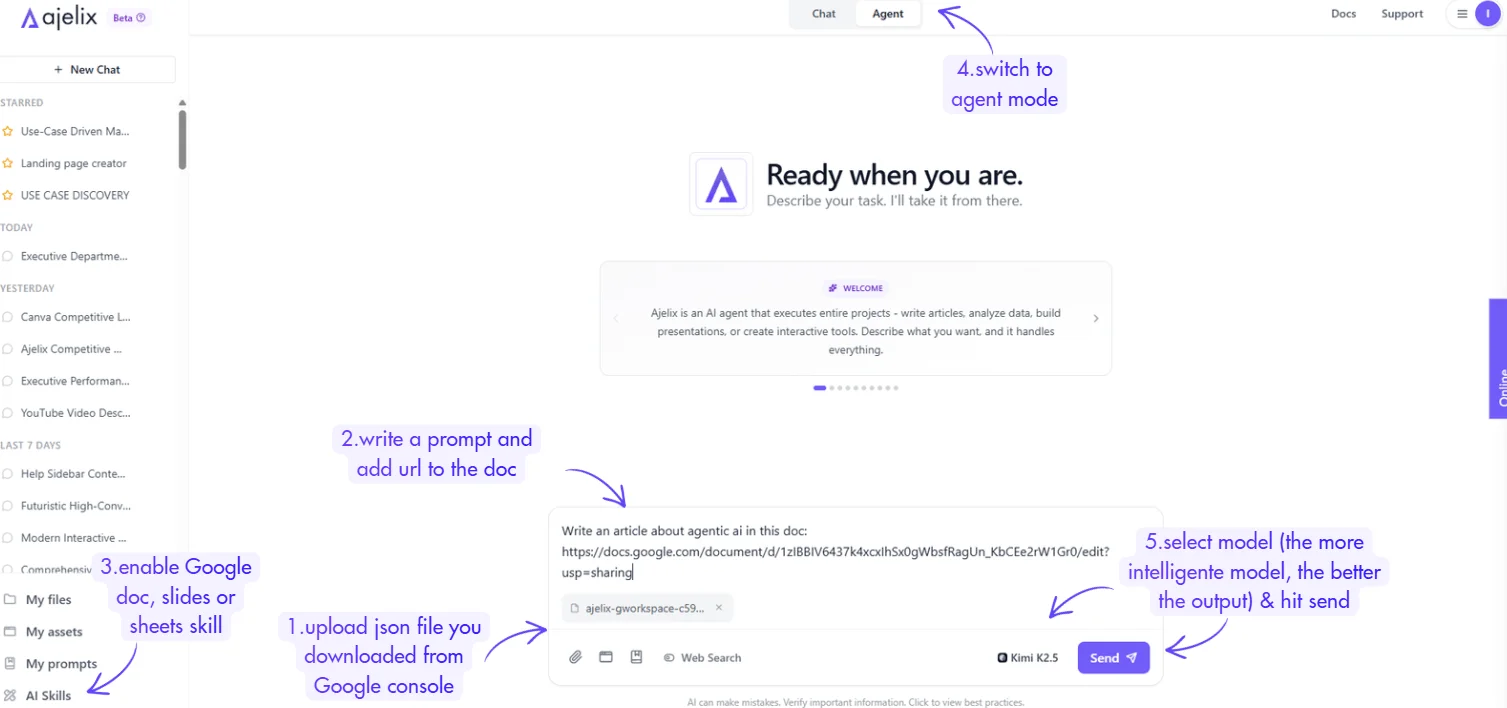
4. Upload the JSON key file
Add the JSON file you downloaded from the Google Cloud Console directly into the chat. This is how the agent authenticates and gains editor access to your sheet.
5. Write a detailed prompt
Include the full link to your Google Sheet, specify what you want created (P&L statement, cash flow analysis, yearly summary, charts, etc.), name your brand color if you want consistent formatting, and always specify your currency. If you skip the currency, the agent will choose one arbitrarily.
The prompt I used for P&L creation:
Access this spreadsheet: [sheet-link] And create one sheet with P&L statement based on the data in the sheet. Make sure to use real formulas so the calculations are dynamic until no errors are in the sheet and add a formatting so it looks pretty, use the color: [your-brand-color] for accents. The P&L statement should be representable so I can share it with my team.
Video 2: AI Formats Spreadsheets, Builds a Yearly Summary, and Exports a PDF
This second walkthrough demonstrates a different set of Google Sheets AI capabilities. Starting from basic monthly data, the AI agent formats the raw table, creates a revenue growth chart, builds an entirely new sheet with an annual financial summary including key insights, COGS, net income, and operating expense breakdowns, and then exports the results as a downloadable PDF report ready to share with a team.
Prompting Tips for the Best Results When Using AI in Google Sheets
Getting great output from a Google Sheets AI assistant is mostly about writing clear, specific prompts. These are the most important things to include.
- Specify your currency. The agent defaults to whatever currency it infers from context. If you want pound signs, dollar signs, or euros, say so explicitly in the prompt. This saves you an extra correction step later.
- Ask for dynamic formulas explicitly. Prompt the agent to make sure all calculations use real formulas rather than hardcoded values. This keeps your spreadsheet live and editable. You can phrase it as: “make sure all formulas are dynamic and reference source data.”
- Mention your brand color. If you want consistent, professional formatting, include your hex color code in the prompt. The agent will apply it to headers, accents, and chart colors throughout the sheet.
- Request professional formatting. Ask the agent to adjust column widths, apply number formatting, and align the layout for readability. Phrasing like “format it professionally” gives the agent enough signal to make good design decisions.
- Iterate with follow-up prompts. You don’t need to put everything in one massive prompt. Start with the core sheet, then send a follow-up asking for a chart, then another for a summary tab. Google Sheets AI agents handle multi-turn workflows well, and iterating produces cleaner results than overloading a single prompt.
- If something goes wrong, just ask again. Agents occasionally hit errors and will self-correct sometimes by deleting a broken sheet and rebuilding it from scratch. This is normal agentic behavior. If a formula or section looks wrong, describe the issue in a follow-up prompt, and the agent will fix it.
What Else Is Possible with AI Agents
Beyond financial reports, the same agentic approach works across a wide range of use cases. Teams are already using AI tools for Google Sheets to create interactive CFO dashboards built from spreadsheet data (I did a video on this), sales models and financial projections in Excel format, PowerPoint presentations generated from a single prompt, web-based dashboards that can be embedded directly into a company website, and custom internal tools like dividend calculators and operational trackers.
The common thread across all of these is the same: you provide data and a prompt, and the AI agent handles every step of production autonomously.
Quick-Start Checklist
Before you run your first Google Sheets AI workflow, make sure you have completed the following:
- Created a Google Cloud project and enabled the Google Sheets API
- Created a service account and downloaded the JSON key file
- Shared your spreadsheet with the service account email as an Editor
- Uploaded the JSON file to your AI agent platform (Full docs on how to do it here)
- Switched to Agent mode and enabled the Google Sheets skill
- Selected a high-intelligence model optimized for workspace applications
- Written a prompt that includes the sheet URL, task description, currency, and brand color
Once these are in place, you are fully set up to use AI in Google Sheets for any report, dashboard, or analysis you need, and you won’t have to repeat the Google Cloud setup steps again.
Final Thought
The shift from manually building spreadsheets to using Google Sheets AI agents is not a small quality-of-life improvement, it is a fundamentally different way of working. Tasks that previously took hours of formula writing, chart building, and formatting now take a well-written prompt and 10–15 minutes of autonomous agent work.
Whether you’re looking for the best AI for Google Sheets to handle financial reporting, the best Google Sheets AI assistant for creating dashboards, or simply a smarter way to work with data, the agentic approach covered in these two videos is the most practical starting point available today.
Try it for free at chat.ajelix.com.
FAQ
A Google Sheets AI agent is an AI system that connects directly to your spreadsheet and autonomously performs multi-step tasks, writing formulas, formatting data, building charts, and calculating KPIs based on a text prompt. Unlike a basic Google Sheets AI assistant or autocomplete tool, an agent reasons through the entire workflow independently without you manually touching the sheet.
No. The Google Cloud setup takes about 4–5 minutes and involves clicking through a few menus, no coding required. After that, everything is driven by plain-text prompts describing what you want the agent to do.
No. The Google Cloud setup is done once per app. Once you’ve connected the Google Sheets API and created your service account, you can reuse it for any spreadsheet. You just need to share each new sheet with the service account email and give it Editor access.
Yes. The agent writes real Google Sheets formulas that reference your source data, not hardcoded static values. Charts are fully interactive and editable. If you update your underlying data, the formulas and charts update automatically exactly as they would if you had built them manually.
Include the full link to your Google Sheet once, a clear description of what you want created, your preferred currency, and your brand color if you want consistent formatting. Also, explicitly ask for dynamic formulas to avoid the agent writing plain text values instead of real calculations.
Yes. You can prompt the agent to export any sheet or set of sheets as a PDF. Results vary slightly by sheet, more complex formatting may not always translate perfectly, but for clean summary sheets the output is ready to send to a manager or client directly.
The agent self-corrects. If it encounters an error it can’t fix inline, it may delete the problematic sheet and rebuild it from scratch, which is normal agentic behavior. You can also send a follow-up prompt describing what looks wrong, and the agent will iterate and fix it.
Absolutely. The same workflow supports interactive CFO dashboards, sales models, annual summaries, expense trackers, and more. The agent can also create Excel files, PowerPoint presentations, and web-based dashboards from Google Sheets data, all from simple prompts.
Agentic AI chat that helps you complete projects
AI for work that ingests, transforms, and delivers the exact deliverables your team needs, while you stay focused on strategy. No more chatting, agents can get the job done.