How To Create Powerpoint Presentation Using AI Agent (+Video)

You can create a complete, professional PowerPoint presentation using AI in under 15 minutes, including research, design, charts, and all with a single prompt. AI agents like Ajelix act as a fully autonomous PowerPoint maker: they research your topic online, build a content outline, apply professional design, and deliver a finished .pptx file you can download and edit immediately.
What Is an AI Presentation Generator?
An AI presentation generator is more than a slide formatter. When powered by an AI agent, it can:
- Research your product, company, or topic from live web data
- Structure a logical narrative across multiple slides
- Generate charts, data visualizations, and competitive analysis
- Apply consistent design colors, fonts, and layout automatically
- Export a fully editable PowerPoint file
This is different from basic AI slides or PPT maker tools that simply reformat text you paste in. An AI agent completes the entire workflow autonomously.
How to Create a PowerPoint Presentation Using AI
1. Write a Prompt That Does the Heavy Lifting
The best prompts for a PowerPoint generator AI include three things:
- What to research: link to your website, product, or reference materials
- What to create: specify the type of deck (investor pitch, sales deck, internal report, etc.) and the number of slides
- Context and purpose: who is the audience, what’s the goal, any design preferences
Because you’re asking the AI to research and design, you can skip writing the outline yourself. The prompt does the work.
Pro tip: If you have brand colors or a template, include them in your prompt so the AI can create a PowerPoint presentation output that matches your identity from the start.
Here’s the prompt I used in the video:
Research my SaaS product: [url] and market, then create a modern, professional PowerPoint pitch deck for an investor meeting. The deck should clearly communicate the problem, solution, product value, target market, business model, traction, competitive landscape, go-to-market strategy, and financial outlook, using concise messaging, strong storytelling, and clean, modern visuals. Design it to feel polished, credible, and compelling, with clear takeaways on each slide that resonate with investors.
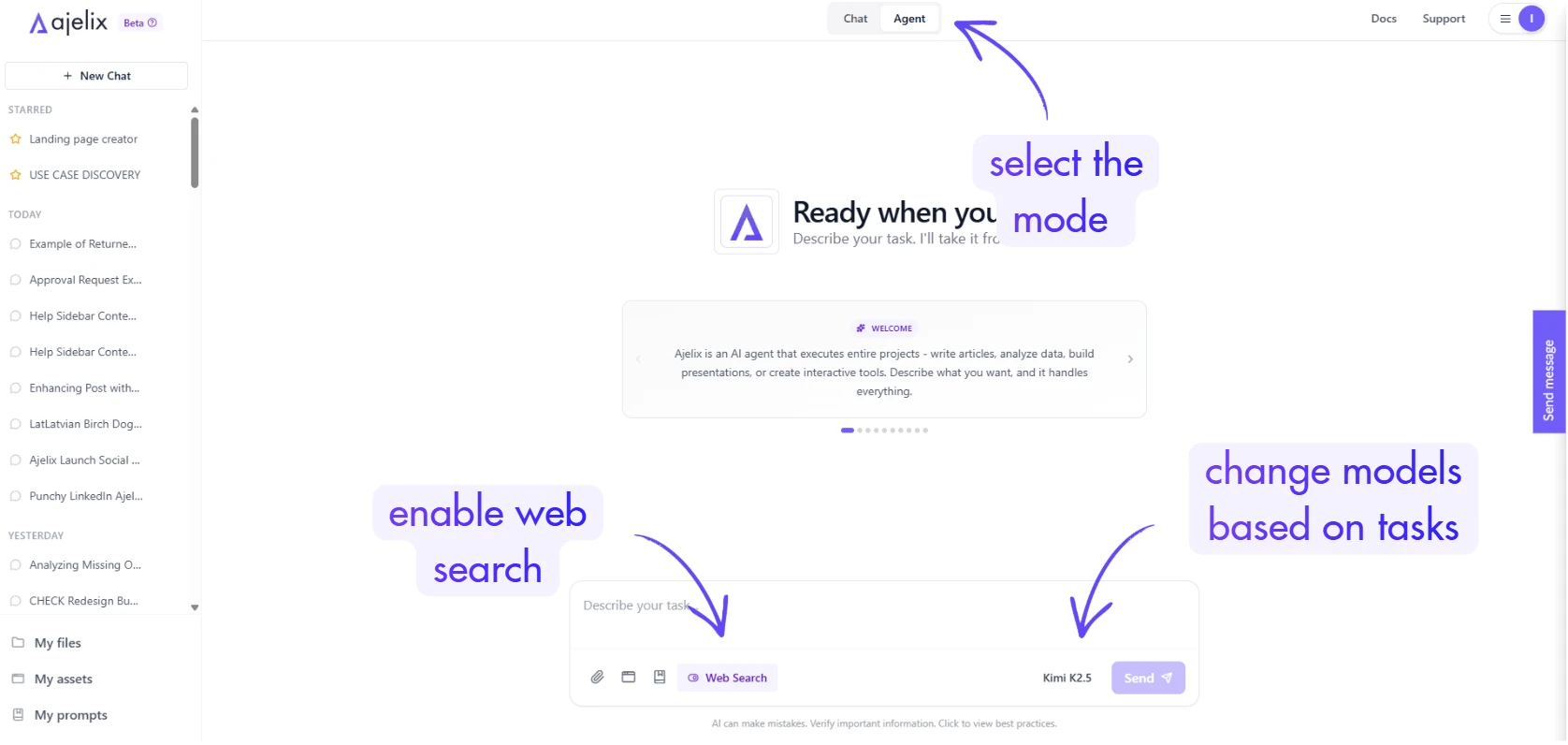
2. Enable Web Search
Before sending your prompt, turn on web search inside your AI agent tool. This allows the AI to pull fresh, current information about your topic, market data, competitor details, and pricing benchmarks rather than relying only on its training knowledge.
This step is what separates a mediocre ai ppt from one that actually contains accurate, relevant data.
3. Use Agent Mode (Not Chat Mode)
This is the most important setting to get right when you want to create a PowerPoint with AI.
Regular chat mode handles single, simple tasks. Agent mode handles multi-step workflows, like research, outlining, designing, building, and exporting, all in sequence without you managing each step.
When you send a prompt in agent mode, the AI will:
- Generate a task plan (you can review and adjust it before it starts)
- Execute each step autonomously
- Show its reasoning at each stage, so you know what it’s doing
For a full presentation, this process typically takes 5–15 minutes. Let it run.
4. Choose the Most Capable Model
To create a PowerPoint presentation using AI at a professional level, use the most capable model available. Complex tasks, like multi-step research, data synthesis, and coherent narrative across 10+ slides, require a high-intelligence model.
Smaller or faster models can handle simple tasks but tend to produce generic, shallow output on complex deliverables. If you want a presentation generator output that looks like it was made by a skilled human designer, invest in the better model.
5. Review the Task Plan Before It Starts
After you send your prompt, the AI agent generates a workflow plan a list of the steps it plans to take. Review this before hitting “Start.”
At this stage, you can:
- Add slides you want included (e.g., “add a team slide” or “include a go-to-market section”)
- Remove steps that aren’t relevant
- Clarify the tone or format
Once you’re satisfied, click Start Task and let the agent work.
6. Download, Review, and Edit
When the agent finishes, you’ll get a downloadable .pptx file. Open it in PowerPoint (or Google Slides) and review each slide.
Expect to make small edits to pricing, specific numbers, or branding details that the AI estimated based on publicly available information. The structure, design, and narrative will typically require little to no changes.
Common quick edits after using an ai ppt generator:
- Update pricing figures to match current plans
- Swap in your actual brand colors if you didn’t provide them upfront
- Replace estimated metrics with your real internal numbers
(Here’s What I Generated) Investor Pitch Deck Generated With One Prompt
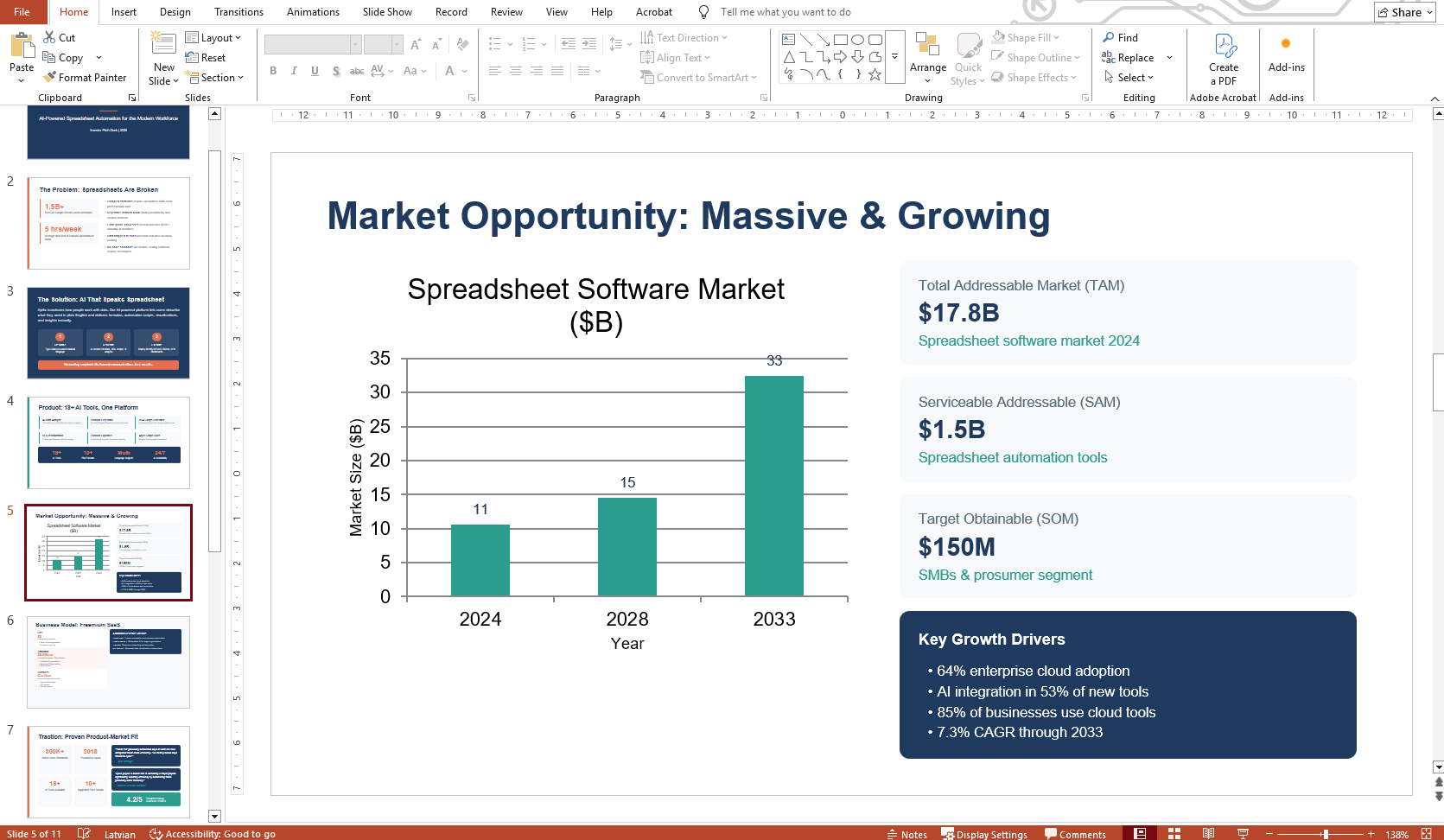
In the video above, the AI agent produced an 11-slide investor pitch deck for a SaaS product. With no design input and no outline from the user, the output included:
- A problem/solution narrative with accurate market framing
- Business model and pricing slides (with minor pricing inaccuracies, easily corrected)
- Auto-generated charts and data visualizations
- A competitive landscape analysis
- Financial projections and KPIs
- A funding ask slide (Series A)
The total time from prompt to finished file: just over 10 minutes. Here’s a sneak peek into the presentation I got:
Tips for Better AI PowerPoint Results
Provide a URL. Linking to your website, product page, or a relevant article gives the AI real, specific information to work with instead of generating generic content.
Save your prompt. Once you find a prompt structure that works for pitch decks, sales decks, or internal reports, save it in a prompt library so you can reuse and refine it.
Save the output file. Store the generated .pptx as a template. The next time you want to create ppt using ai for the same brand, you can feed the existing file to the agent and ask it to update content while keeping the design.
Iterate with the agent. If you want changes different slide order, an additional section, different chart style, you can ask the agent to revise specific slides rather than regenerating the whole deck.
Why Use an AI Agent to Create Presentations?
Most people underestimate how much time a presentation actually takes: research, structure, writing, design, formatting. Even for experienced designers, a solid 10-slide deck is 3-6 hours of work.
An AI powerpoint generator compresses that into minutes. The output may not be pixel-perfect on the first run, but the structure and content quality are often better than what most people produce manually, especially under time pressure.
For anyone who regularly needs to create PowerPoint presentations using AI marketers, founders, consultants, and sales teams, this workflow is worth building into your standard process.
Ready to try it? Head to chat.ajelix.com, sign up, and use the prompt from the video description to generate your first AI-built presentation.
Frequently Asked Questions
Yes. AI agents with web search access can research, outline, design, and build a complete .pptx file from a single prompt, no manual input required beyond the initial instructions.
Typically, 5-15 minutes depending on the number of slides, the complexity of the topic, and the AI model used.
Yes. The output is a standard .pptx file that opens in PowerPoint, Google Slides, or Keynote. You can edit every element, text, colors, charts, and layouts.
No, but you can. If you have brand colors, fonts, or a template, include them in your prompt. Without them, the AI will choose a professional design style automatically.
Tools that combine an AI agent with web search, like Ajelix, produce the most complete results because they can research your topic in real time rather than relying only on static training data.
Agentic AI chat that helps you complete projects
AI for work that ingests, transforms, and delivers the exact deliverables your team needs, while you stay focused on strategy. No more chatting, agents can get the job done.