Excel Financial Modeling With AI Agents (No Formulas Need!)
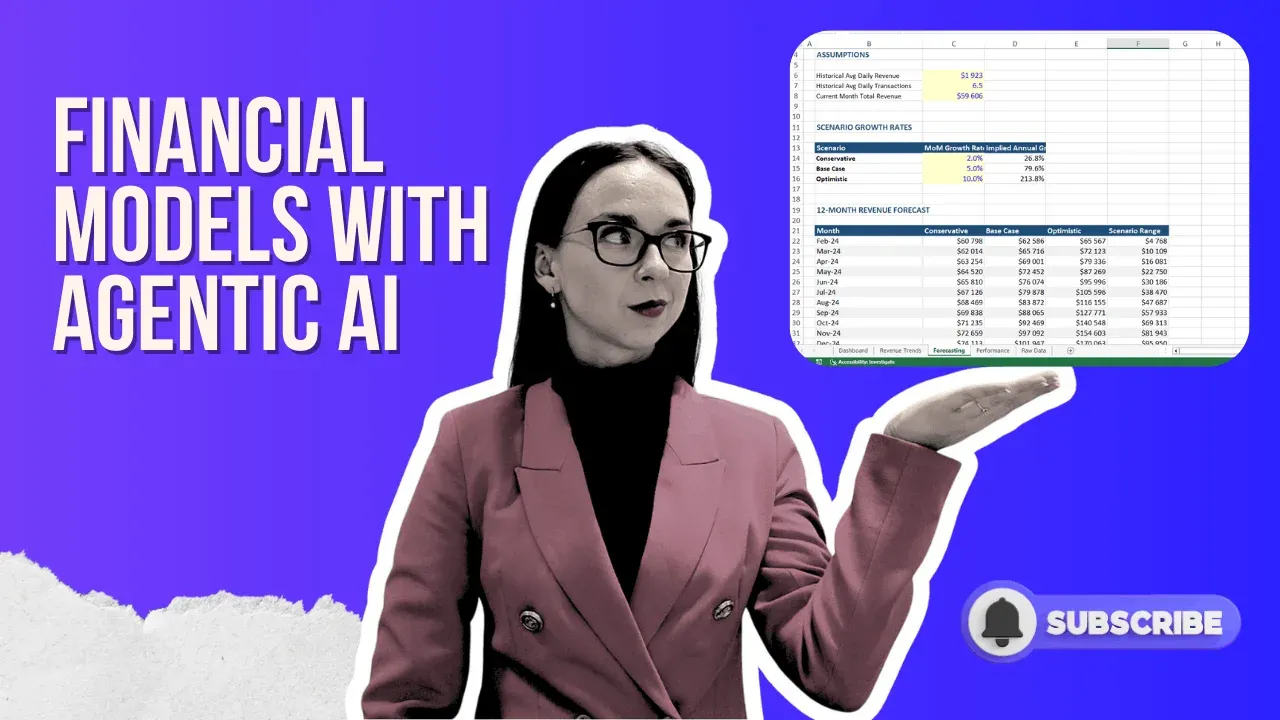
You can now build a complete, investor-grade Excel financial model in under 10 minutes without writing a single formula. AI agents can analyze your raw sales data, generate dynamic charts, build multi-sheet dashboards, and even fix their own errors. This guide shows you exactly how to do it, based on a real workflow using an AI agent to produce a full financial model from scratch.
Watch the full video tutorial on how we did it:
What Is Excel Financial Modeling?
Excel financial modeling is the process of building a structured, formula-driven spreadsheet that represents a business’s financial performance: past, present, and projected. A good financial model in Excel typically includes revenue summaries, profit margins, scenario forecasts, and visual dashboards that decision-makers and investors can use at a glance.
Traditionally, advanced Excel financial modeling required hours of manual work: cleaning data, writing complex formulas, building pivot tables, and formatting dashboards by hand. AI agents are changing that equation entirely.
AI Financial Modeling: The Faster, Smarter Approach
AI financial modeling means delegating the entire model-building process to an AI agent that reads your data, reasons through what analysis is needed, and produces a complete Excel file including real, editable formulas. This isn’t a static export or a screenshot. It’s a fully functional Microsoft Excel financial modeling output you can open, edit, and share. Here’s a sneek peak on what we generated:
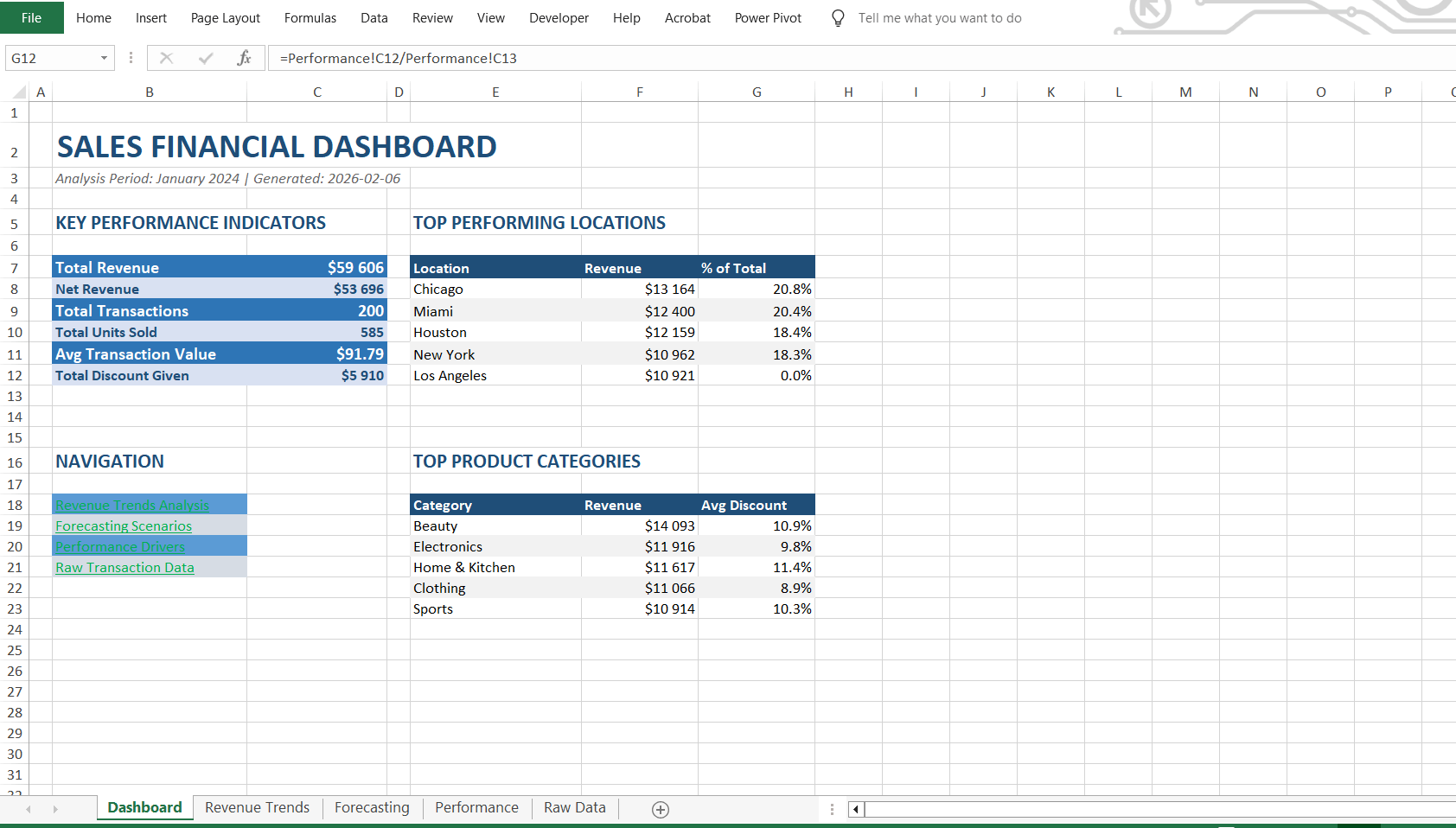
The key difference between using AI in “chat mode” vs. “agent mode” is critical here. Chat mode is fine for quick questions. Agent mode runs autonomously, it can plan its own steps, execute them in sequence, catch errors, fix them, and deliver a finished file. For serious financial modeling examples, agent mode is non-negotiable.
How to Build a Financial Model With an AI Agent
1. Prepare Your Data
Your input doesn’t need to be perfect. In the example in this video, the source file was a straightforward sales data table with columns for revenue, profit, and product category over 100 rows of data. Standard, nothing fancy.
2. Write a Clear Prompt
The prompt is everything. For this workflow, the prompt instructed the AI to:
- Create a comprehensive sales financial model in Excel
- Analyze the provided data in depth
- Produce an advanced, investor-grade analysis
- Use dynamic charts and visualizations
- Build a dashboard
The more specific your prompt, the better the output. If you want a 12-month revenue forecast, say so. If you want scenario analysis, include it. The AI will follow your lead. Here’s the prompt I used in the video:
Create a comprehensive sales financial model in Excel. I will upload a data file, and your task is to analyze it in depth and produce an advanced, investor-grade analysis using dynamic charts, clear breakdowns, and multiple financial modeling perspectives (e.g., revenue trends, forecasting scenarios, performance drivers). The final Excel file should be well-structured, easy to navigate, and visually impressive, with a sleek, modern design that looks professional on screen and is engaging enough. Create a dashboard in the first sheet so i can navigate it easily and provide all the formulas and charts. It should be ready for sending to my manager.
3. Switch to Agent Mode
This is the most important setting to check before you hit send. Excel agent mode enables the AI to work autonomously over multiple steps: planning the task, executing each phase, catching formula or file errors, and self-correcting. In this example, the agent completed 15 distinct actions to deliver the final file.
4. Select the Right AI Model
Not all models are equal for complex financial work. For creating AI models that produce investor-grade outputs, choose the most capable model available in your tool. A faster, lighter model will be quicker but the quality won’t match what you need for serious financial modeling Excel templates.

5. Attach Your File and Run
Upload your data file, confirm you’re in agent mode with the right model selected, and send. The agent will display its work plan before starting, this is your chance to review whether it has understood the task correctly and adjust if needed.

6. Review the Output
In the video example, the AI agent took approximately 10 minutes to complete the full model. The delivered Excel file included:
- A sales financial dashboard with real, dynamic formulas
- Revenue trend sheets with average ticket summaries
- 12-month revenue forecasting with scenario growth analysis
- Location-level summaries with totals
- Breakdowns by product category and payment category
- Top-performing products analysis
- A formatted version of the raw data
Every formula in the file is live and editable. This is a genuine financial modeling excel template, not a static report.
Download the Excel Financial Modeling Template
What the AI Agent Did Automatically (That Would Take You Hours)
One of the most impressive aspects of this workflow is what the agent handled without being asked explicitly. It self-corrected formula errors mid-task. It structured multiple sheets logically. It formatted the raw data into a clean, readable table. It extracted and grouped data by category, none of which required a second prompt.
A manually built equivalent of this model, clean formulas, multiple sheets, scenario modeling, dashboard would realistically take several hours for an experienced analyst. The AI agent produced a comparable result in 10 minutes from a single prompt.
Financial Modeling Examples: What AI Can Build
To give you a sense of range, here are real financial modeling examples (that I showed in the video) that AI agents can produce from a data file and a single prompt:
- Sales performance dashboards with month-over-month comparisons
- Revenue forecasting models with adjustable growth rate assumptions
- Profit margin analysis by product, region, or customer segment
- Cash flow projections for investor presentations
- Budget vs. actuals trackers with variance analysis
- Interactive forecast apps where you upload a file and get instant analysis
Each of these represents a category of work that traditionally required either significant Excel expertise or a financial analyst’s time. AI agents make them accessible to anyone with data and a clear prompt.
Tips for Getting the Best Results From AI Financial Modeling
- Be specific in your prompt. If you want a 12-month forecast, say “12-month revenue forecast.” If you want scenario analysis with three growth rate assumptions, describe it. Vague prompts produce generic results.
- Always use agent mode for complex outputs. Chat mode is not designed for multi-step file creation. Agent mode is built for it.
- Choose your model deliberately. For advanced excel financial modeling outputs, use the highest-capability model available. The quality difference is significant.
- Review the work plan. Most AI agents show their planned steps before executing. Use this moment to catch misalignments early before the agent has spent time building the wrong thing.
- Iterate freely. Once you have a base model, you can continue the conversation to add additional charts, a different forecast period, or a new breakdown by category. The agent remembers the file and the context.
The workflow described in this guide is available at chat.ajelix.com, which includes a free tier. The Excel template generated in the video is available for download above.
If you want to see more AI agent use cases: landing pages (we have a landing page creation guide here), forecast apps, interactive dashboards (check the article on how to create a dashboard here), subscribe to the Ajelix YouTube channel for new tutorials. And if you have a use case you’d like to see covered, leave a comment below.
FAQ
Excel financial modeling is the practice of building structured, formula-driven spreadsheets that represent a company’s financial data, forecasts, and scenarios. These models are used by analysts, executives, and investors to understand business performance and make decisions.
Yes. AI agents can read your raw data, plan the model structure, write real Excel formulas, build multi-sheet workbooks, and generate dashboard outputs, all from a single prompt. The result is a fully functional, editable Excel file.
Chat mode is for quick, conversational responses. Agent mode runs autonomously across multiple steps, can self-correct errors, and is designed for complex file creation tasks like financial models. For any serious Excel output, always use agent mode.
No prior Excel expertise is required to generate the model. However, some familiarity with Excel helps you evaluate the output, make adjustments, and extend the model after it’s generated.
In the example shown in this video, a comprehensive multi-sheet financial model with scenario analysis, forecasting, and a dashboard was completed in approximately 10 minutes.
Absolutely. The output is a standard Excel file with real formulas. You can edit inputs, add data, modify formulas, or continue working with the AI agent to extend the model.
Several AI platforms support Excel agent workflows. The example in this guide uses chat.ajelix.com, which offers an agent mode designed specifically for tasks like this, including a free tier to get started.
Yes, include it explicitly in your prompt. Specify the forecast period, whether you want scenario analysis (conservative/base/optimistic), and any growth rate assumptions. The more detail you provide, the more targeted the output.
Yes. Once downloaded, the template is a fully functional Excel file. You can save it, replace the underlying data, and reuse the model structure for future periods or different datasets.
Agentic AI chat that helps you complete projects
AI for work that ingests, transforms, and delivers the exact deliverables your team needs, while you stay focused on strategy. No more chatting, agents can get the job done.