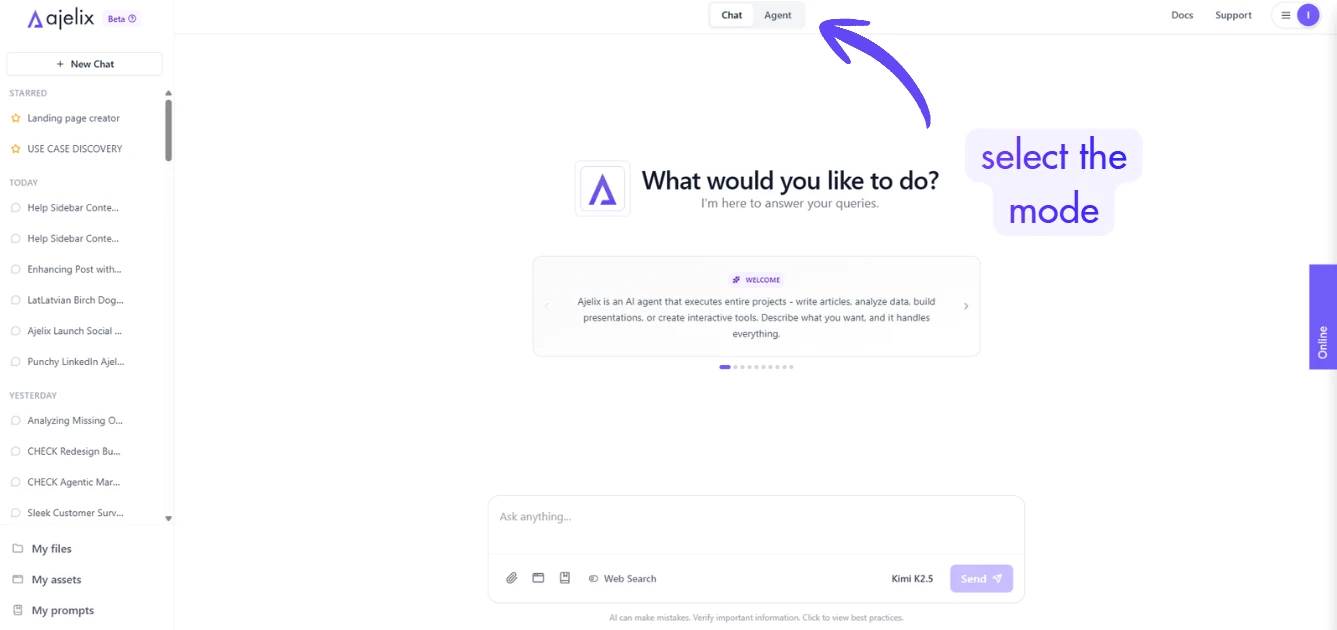
Ajelix offers two distinct operation modes to match your task complexity: Chat mode for fast, straightforward interactions and Agent mode for structured, multi-step workflows.
Chat mode delivers instant responses ideal for ideation, research, and simple outputs. Agent mode engages a deliberate process, like planning, tool usage, and execution approval, for reliable handling of files, data, and complex creations.
Choose the right mode via the top bar toggle to access the optimal tools. This ensures precision: simple asks stay quick, while intricate projects get robust support.
Chat Mode
Chat mode is best for instant replies, lightweight tasks, and exploratory work. No planning overhead responses are direct and conversational.
Key Features:
- Immediate answers without multi-step approval.
- General knowledge, explanations, and creative generation.
- Supports simple visuals and code that render inline.
| Task Category | Examples |
|---|---|
| Q&A & Explanations | Explain concepts (e.g., “What is machine learning?”), troubleshooting (e.g., “Debug this Python error”), brainstorming ideas. |
| Content Generation | Write articles, emails, summaries; outlines and research guidance (e.g., “Outline a business plan”). |
| Code Snippets | Generate code samples (e.g., “Write a React component”, “SQL query for sales data”)—viewable but not executed. |
| Simple Visuals | Basic Mermaid diagrams, markdown tables, or text-based charts (e.g., “Draw a flowchart for user login”). |
| Quick Research | Summaries, citations, fact-checking (enable web search toggle for live data). |
| Prompt Iteration | Refine responses conversationally (e.g., “Make it shorter” or “Add examples”). |
When to Use: Everyday queries, perfect for writing, learning, and prototyping ideas.
Agent Mode
Agent mode is best for complex, multi-step tasks requiring tools, files, analysis, or chaining actions. Follows a structured plan to complete the task.
Key Features:
- Plan Generation: Agent proposes a step-by-step plan in format (goal, steps, options, time estimate) for review.
- Tool Access: Skills for files, data, visuals (e.g., Excel, PPTX, PDF processing).
- Execution Approval: Say “Execute” to run; modify or cancel plans anytime.
- Code Execution: executes code in a sandbox.
| Task Category | Examples |
|---|---|
| Data & Spreadsheets | Analyze your CSV or Excel files; create charts, formulas, pivot tables, and dashboards (e.g., “Analyze sales data from this CSV and build a dashboard”). |
| Documents & PDFs | Create or edit Word documents (.docx) with formatting and comments; pull text or tables from PDFs, merge or split files, read scanned images (OCR). |
| Presentations | Build or edit PowerPoint slides (.pptx) with custom layouts, speaker notes, and animations. |
| Visual Assets & Apps | Make interactive dashboards, charts, websites, flowcharts, mind maps, or custom HTML tools and widgets. |
| Code Execution | Run Python scripts for data processing or automation (e.g., “Clean this CSV with pandas and save the results”). |
| Google Sheets | Read data from or update public Google Sheets links. |
| File Operations | Read, create, edit, or organize files; use workspaces to separate different projects. |
| Advanced Workflows | Chain steps together (e.g., “Extract data from PDF → analyze in spreadsheet → create slides”); scrape websites (with web search enabled). |
| Complex Generation | Build full apps, tools, or reports with preserved formulas, charts, and professional formatting. |
When to Use: Longer tasks, involving files, skills, or iteration risks. Ensures accuracy via planning.
Chat vs. Agent: Quick Comparison
| Aspect | Chat Mode | Agent Mode |
|---|---|---|
| Speed | Instant | Planned (approval step) |
| Complexity | Simple queries | Multi-step, tool-heavy |
| Tools/Skills | None (general AI) | All skills (Excel, PDF, assets, etc.) |
| File Handling | Text uploads only | Full read/write/download |
| Visuals | Basic (text/Mermaid) | Interactive HTML assets |
| Error Handling | Retry in chat | Planned fixes, verification |
| Use Case Example | “Explain APIs” | “Create Excel dashboard from CSV” |
