Want Ajelix Agent to create charts in your Google Sheets? Build presentations in Google Slides for you? Or edit your Google Docs in real-time?
This setup is required to unlock Ajelix agent’s full capabilities with Google™ Workspace. Without it, the AI can only view or discuss files you paste into chat. With these credentials configured, Ajelix Agent gains the ability to:
- Create and edit Google Docs, Sheets, and Slides directly
- Generate charts and visualizations inside your spreadsheets
- Build presentations from scratch or modify existing slides
- Automate document workflows across your Google Workspace
If you want to experience true agentic Google Workspace interactions, where AI doesn’t just suggest but actually does the work inside your files, complete this setup once, and you’re ready to go. We also did a video on how to do this exact setup and use Agentic AI in Google Sheets:
Supported Services: This guide covers Google Docs, Google Sheets, and Google Slides. The process is identical for all three; the only difference is which specific API you enable in Step 2. To complete this guide, you have to have a Google™ account and access to Google Cloud Console.
1. Create a Google™ Cloud Project
- Go to console.cloud.google.com
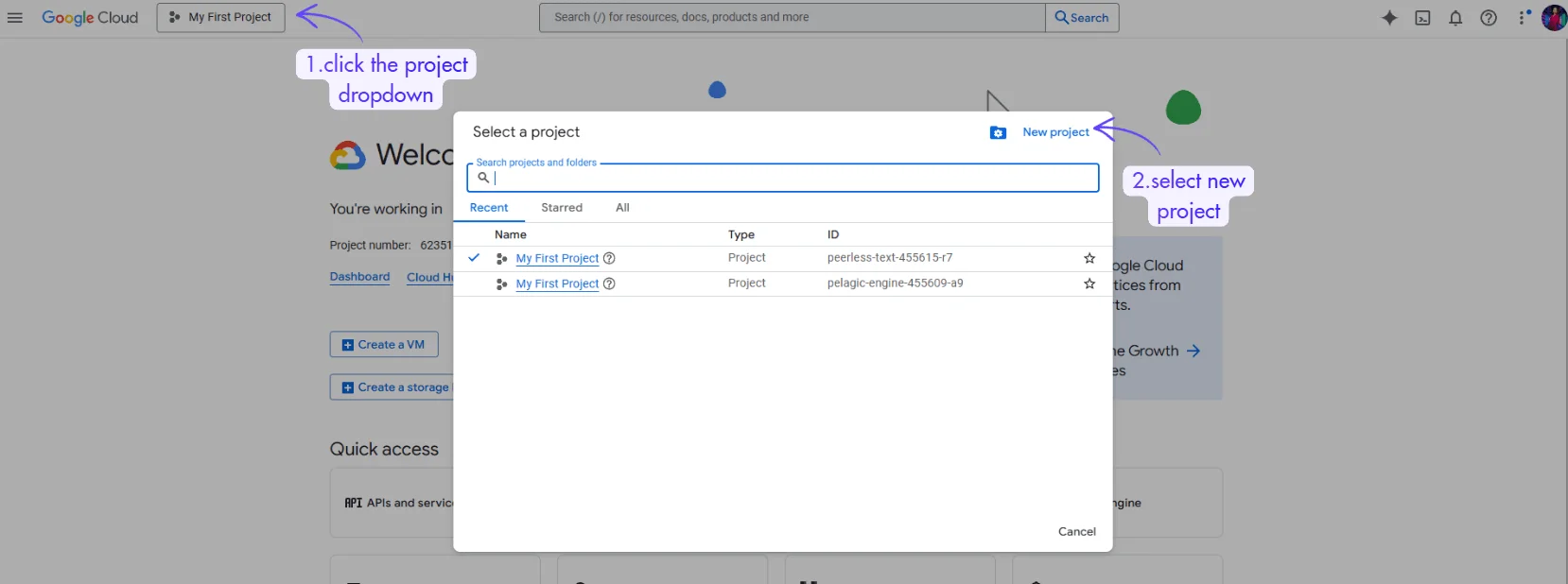
- Click the project dropdown at the top of the page
- Click “New Project”
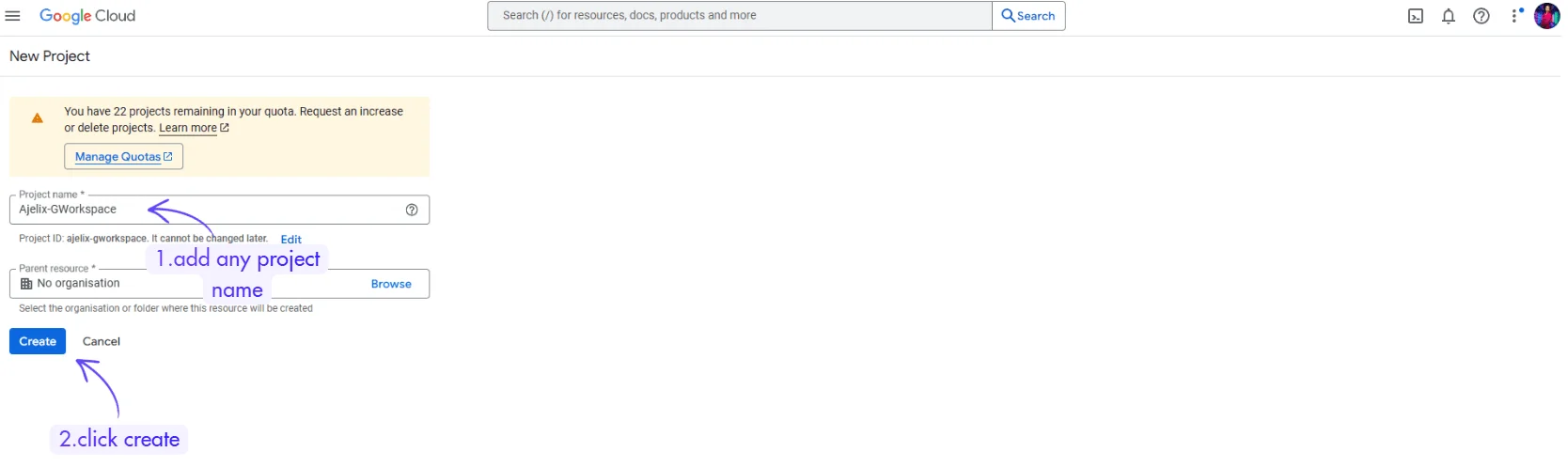
- Enter a project name (e.g., “Ajelix-GWorkspace”)
- Click “Create”
2. Enable the Required API
Note: The API you enable depends on which Google™ service you want to use:
- For Google Docs → Enable “Google Docs API”
- For Google Sheets → Enable “Google Sheets API”
- For Google Slides → Enable “Google Slides API”
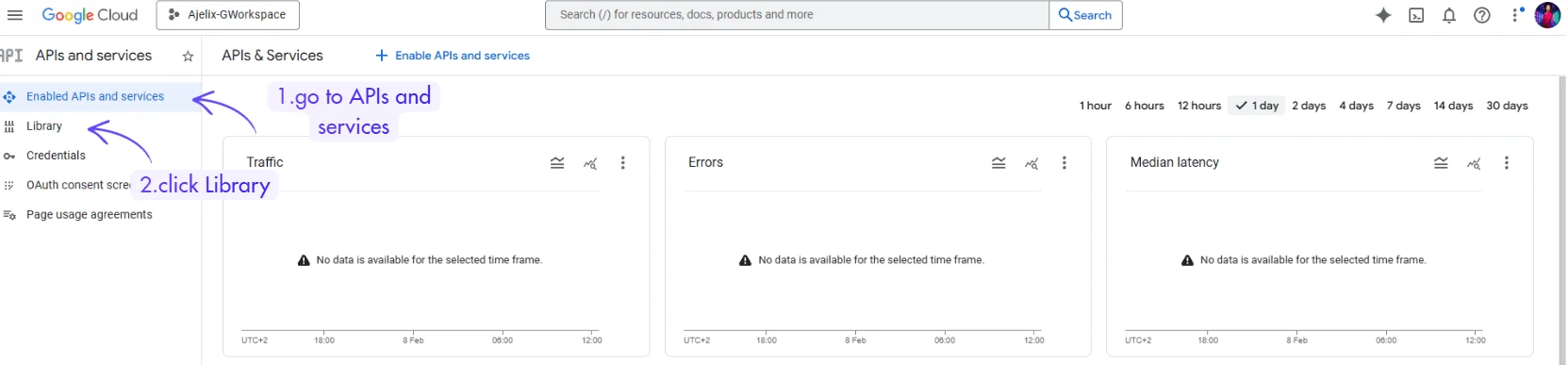
- In your project, navigate to APIs & Services → Library
- Search for the API you need (either Google Slides, Google Sheets, or Google Docs):
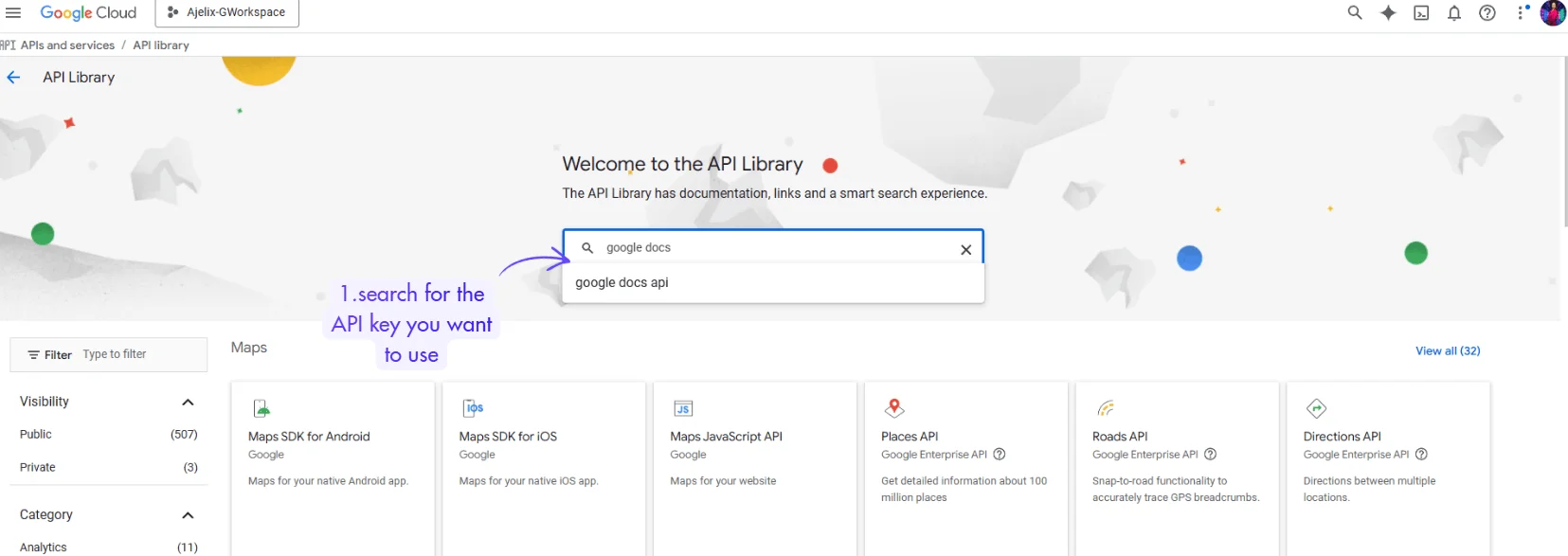
- Click on the API and click “Enable”
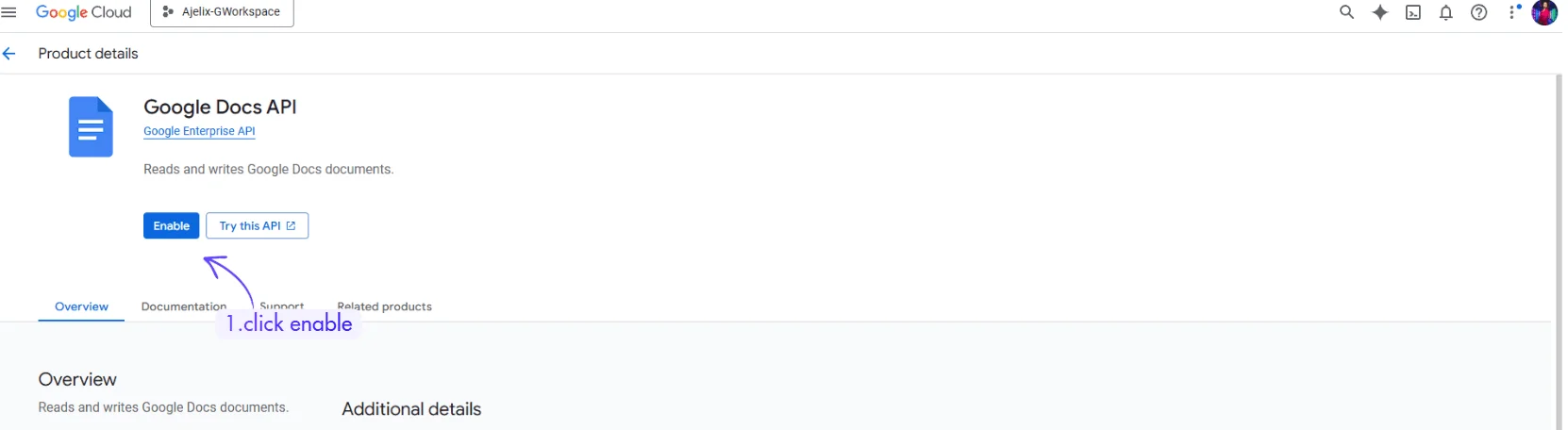
The rest of the steps below are the same for all the APIs you want to use.
3. Create a Service Account
- Go to APIs & Services → Credentials
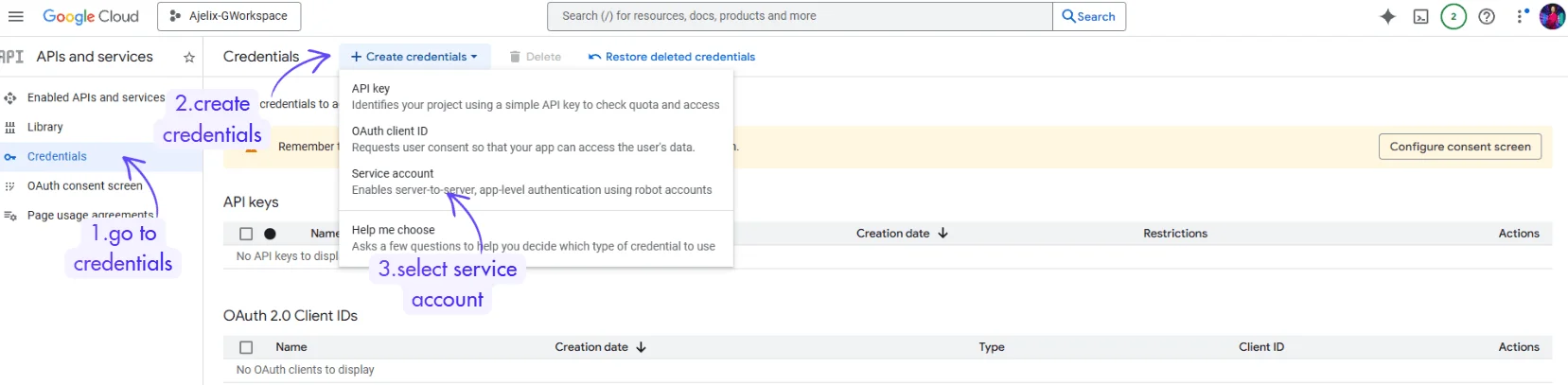
- Click Create Credentials → Service Account
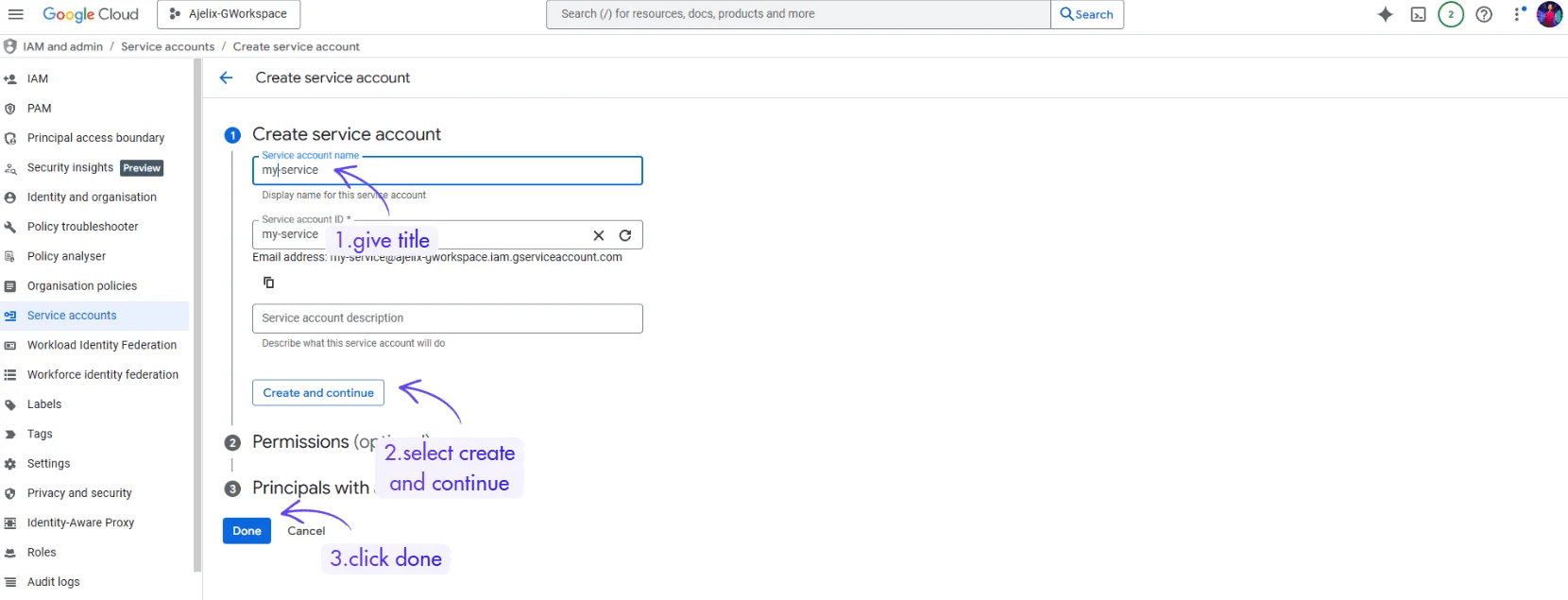
- Enter a name (e.g., “my-service or project”)
- Click “Create and Continue” (you can skip permissions for now)
- Click “Done”
4. Create and Download Credentials
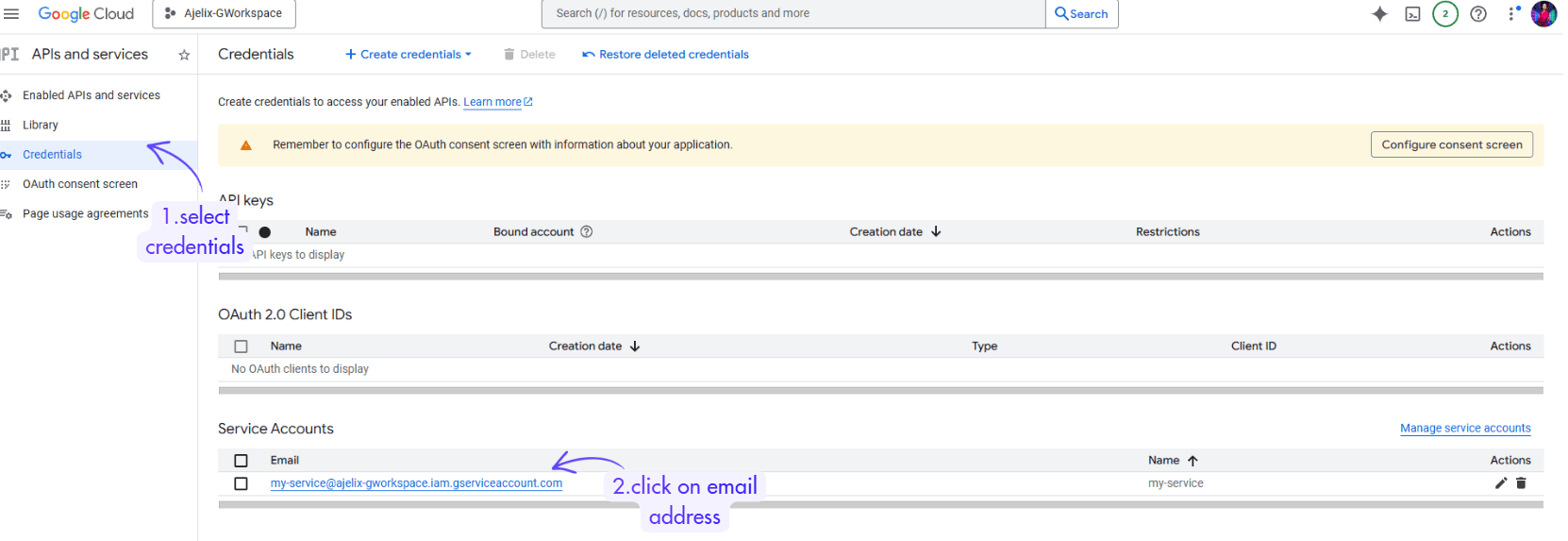
- Go to APIs & Services → Credentials
- Click the email address of your service account
- Go to the Keys tab
- Click Add Key → Create New Key
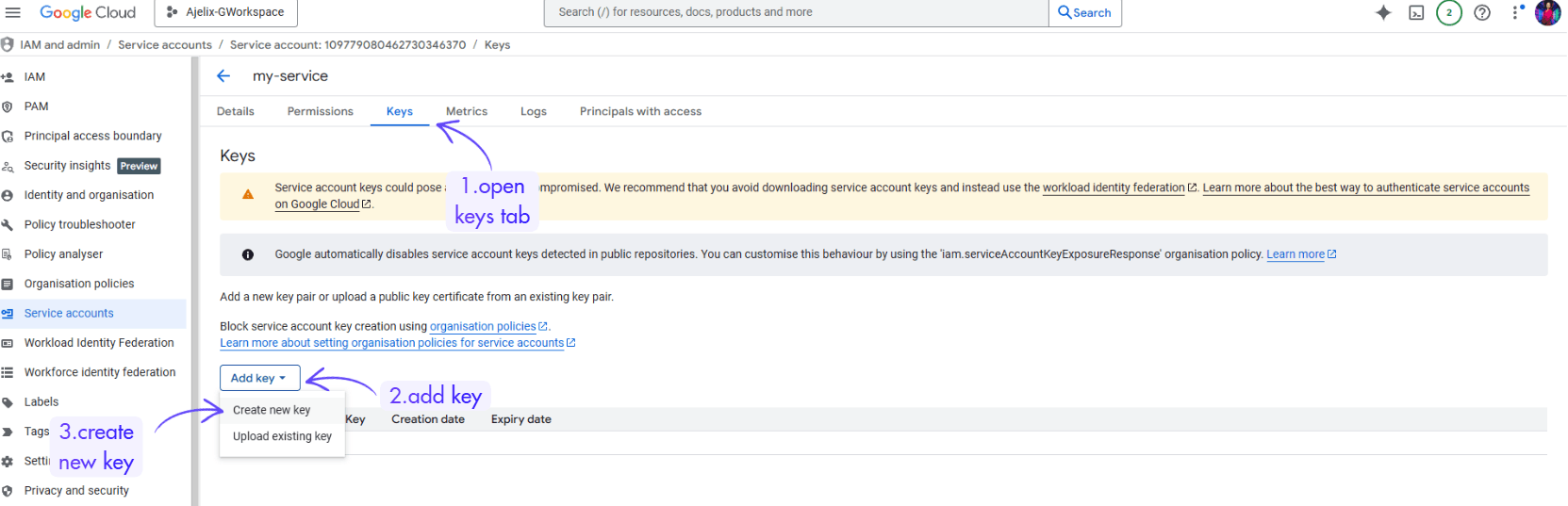
- Select JSON format
- Click “Create”
- The JSON file will download automatically. Save it because you will have to upload it to the Ajelix workspace.
5. Share Access with the Service Account
If you want Ajelix to access existing files:
- Copy the service account email (found on the Credentials page)
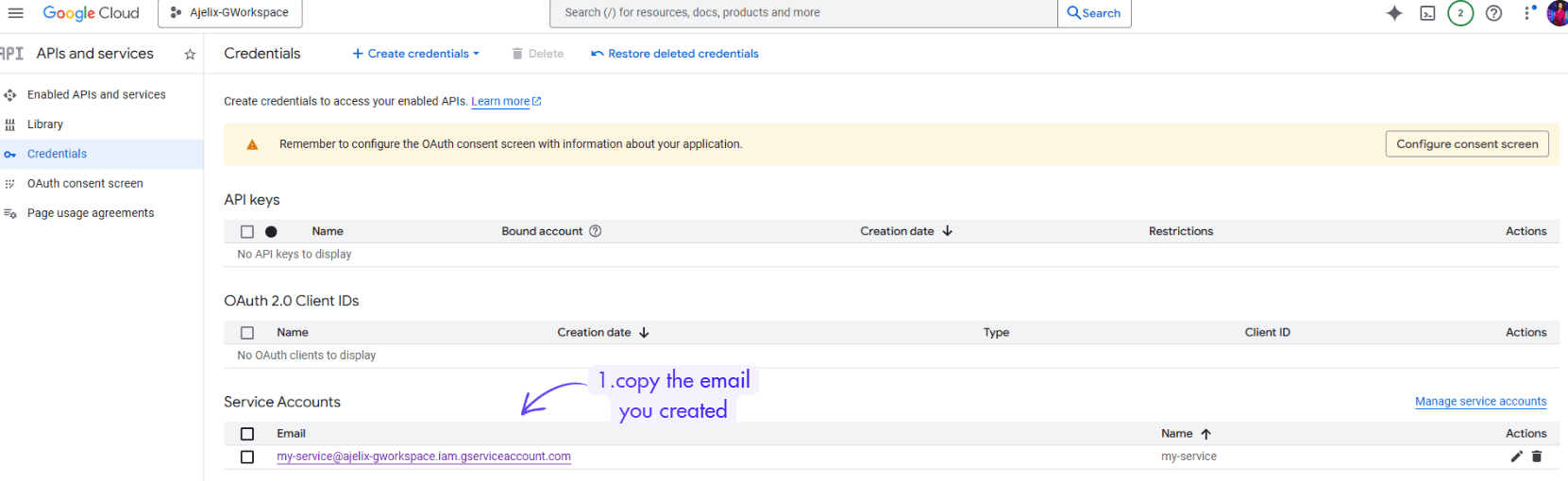
- Open your Google Doc, Sheet, or Slide
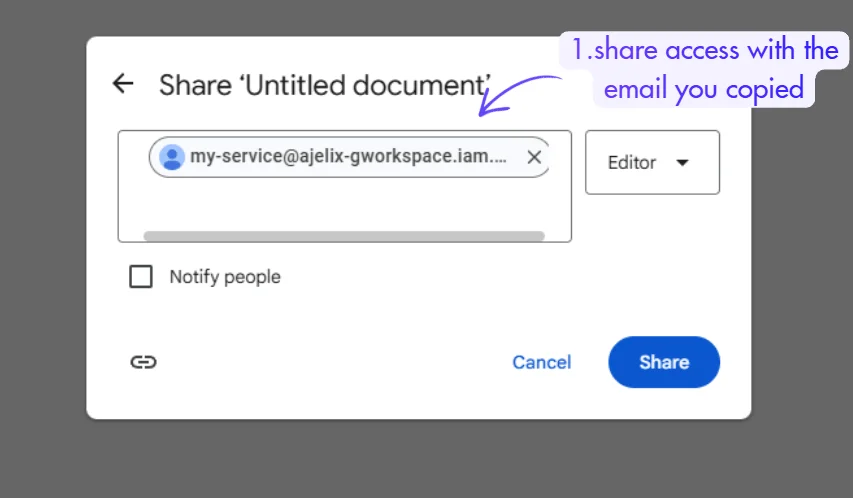
- Click Share and paste the service account email
- Grant “Editor” permission
6. Upload Credentials to Ajelix
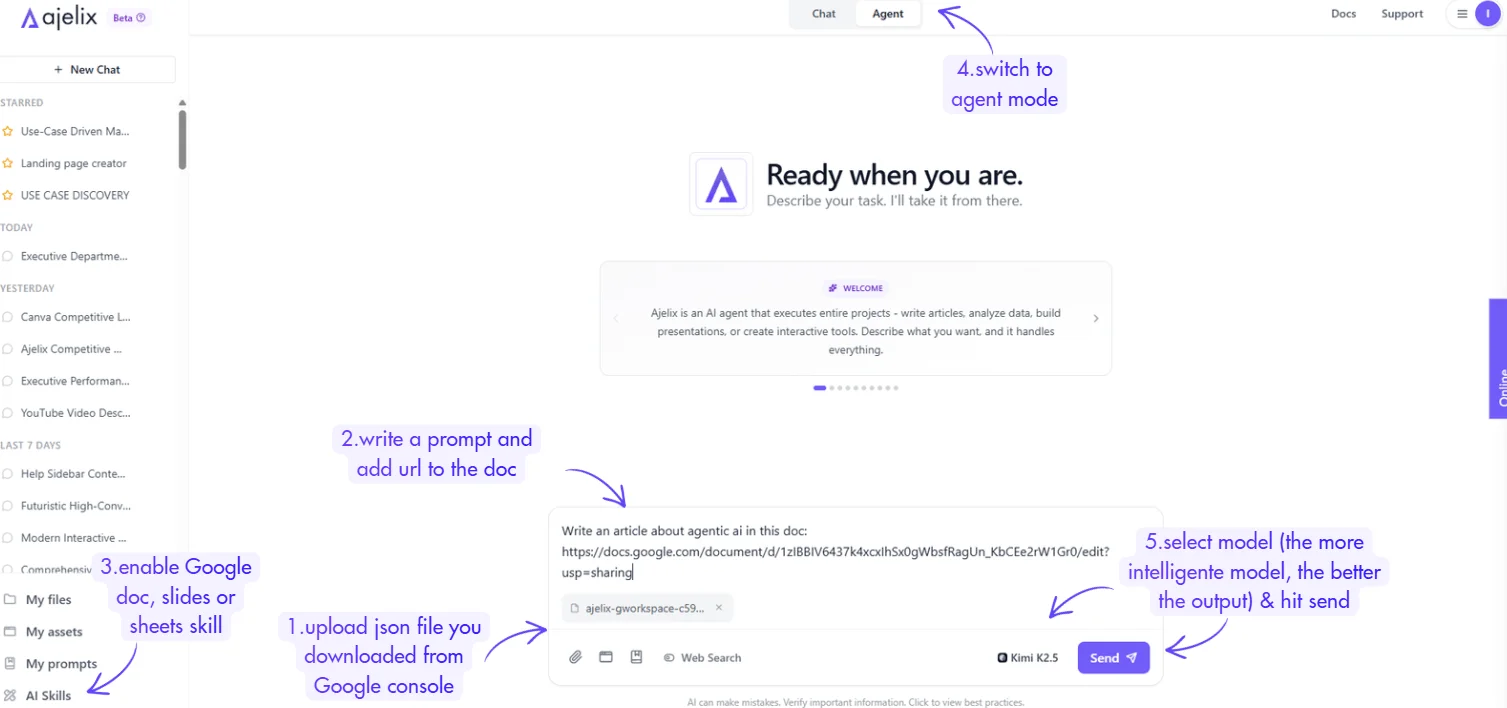
- In the Ajelix chat, click the attachment/upload button & select the
.jsonfile you downloaded from the Google console. - Write a prompt and add a URL for the doc you want to edit.
- Enable either Google Docs, Google Sheets, or Google Slides AI skill
- Switch to Agent mode
- Select the more powerful LLM model (the more intelligent the model the better the output) & hit send.
Once uploaded, Ajelix can now interact with your files. You can start requesting actions like:
- Creating or editing Google Docs
- Analyzing data in Google Sheets
- Generating presentations in Google Slides
