Want Ajelix AI Agent to create charts in your Google Sheets? Build presentations in Google Slides? Generate entire forms in Google Forms? Or edit your Google Docs in real-time?
Get more done in Google Workspace without ever leaving your file. With AI Agent for Work set up and ready, you can stop doing the heavy lifting and let the agent handle it:
- Create and edit Google Docs™, Sheets™, Slides™, and Forms™ directly
- Generate charts and visualizations inside your spreadsheets
- Build presentations from scratch or modify existing slides
- Generate complete forms, surveys, and quizzes instantly
- Automate document workflows across your entire Google Workspace™
Change the way you work with agentic AI
Data analyzed, documents written, slides built, forms automated - right inside Google Workspace.
Complete this setup once, and you’re ready to go
Not a fan of reading? No worries – we’ve got a short tutorial video below that walks you through the whole setup in minutes.
What You’ll Need
- A Google™ account, since AI Agent for Work lives inside Google Workspace™, you’ll need a Google account to access Sheets™, Docs™, Slides™, and Forms™.
- An Ajelix account – chat.ajelix.com Ajelix is the brain behind the agent. Your account is where the AI runs, where your usage is managed, and where you’ll grab the API key that connects the add-on to the agent.
3 Steps to Set Up Google Workspace Addon
Step 1: Install the Add-on
- Go to the Google Workspace Marketplace
- Search for “AI Agent for Work” by Ajelix
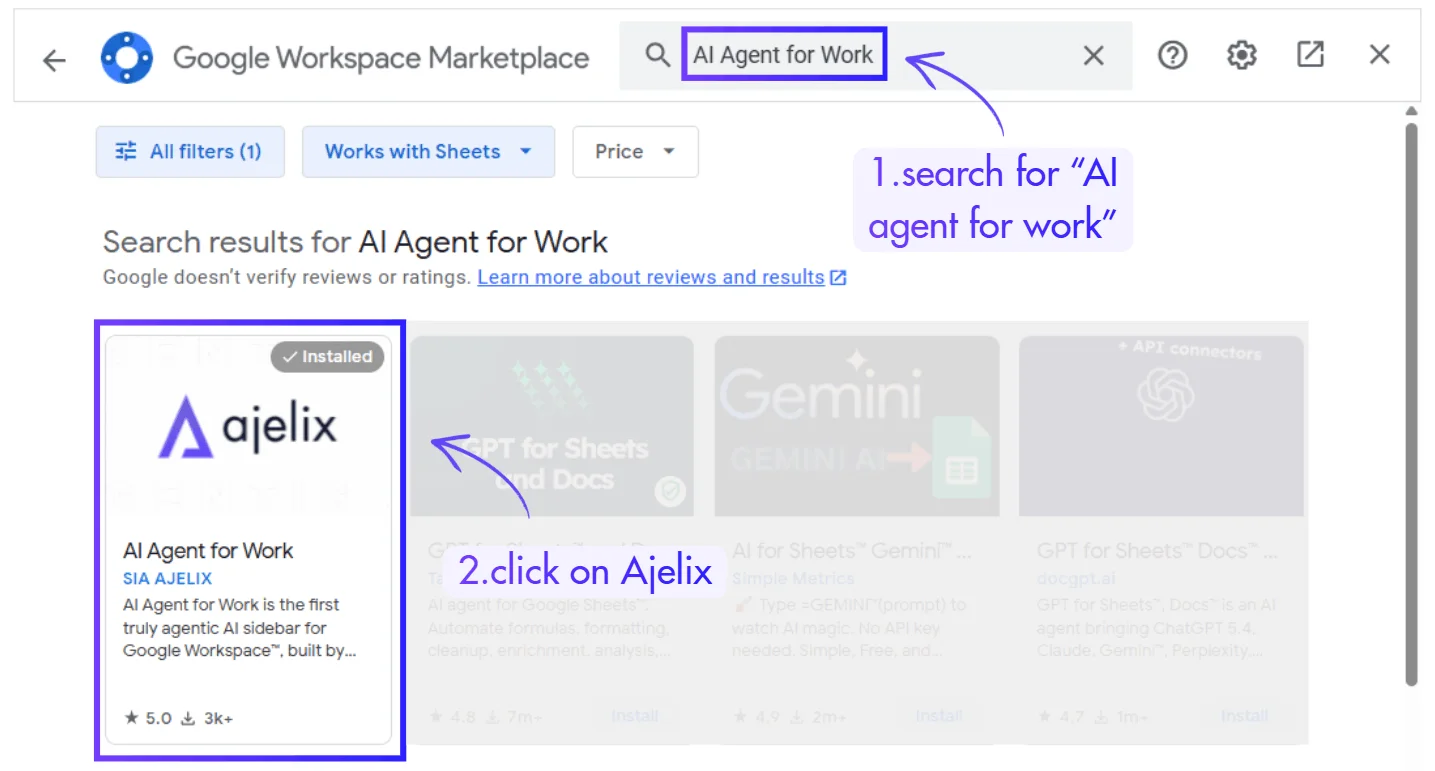
3. Click Install and follow the prompts
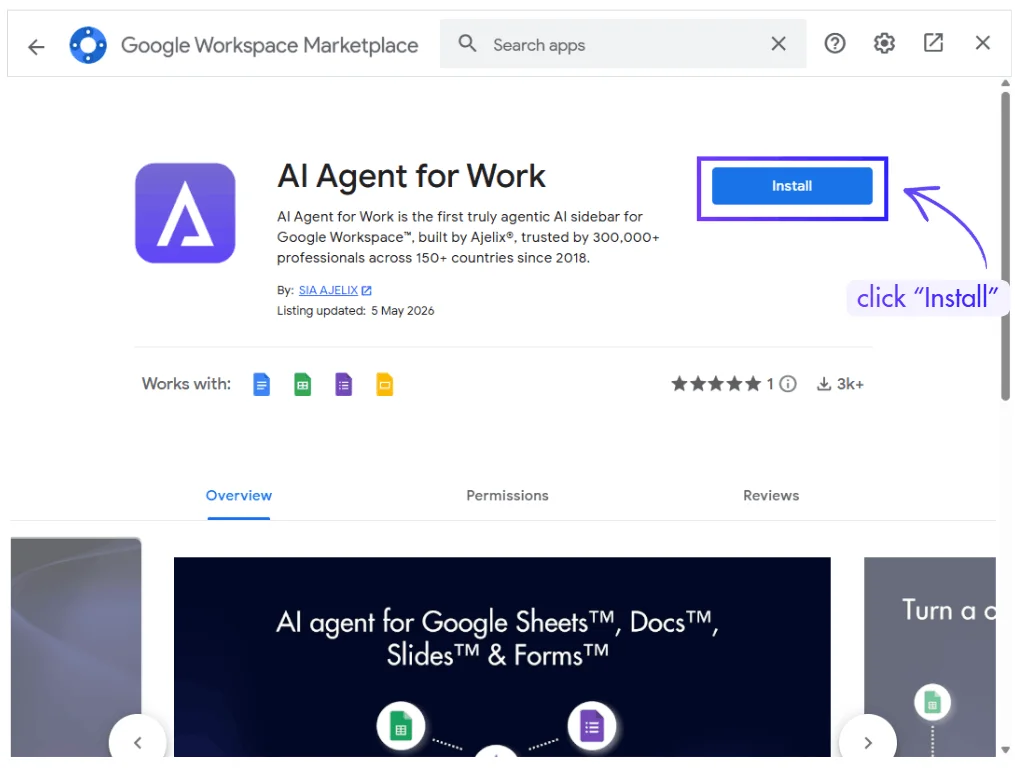
4. Grant the required permissions when asked
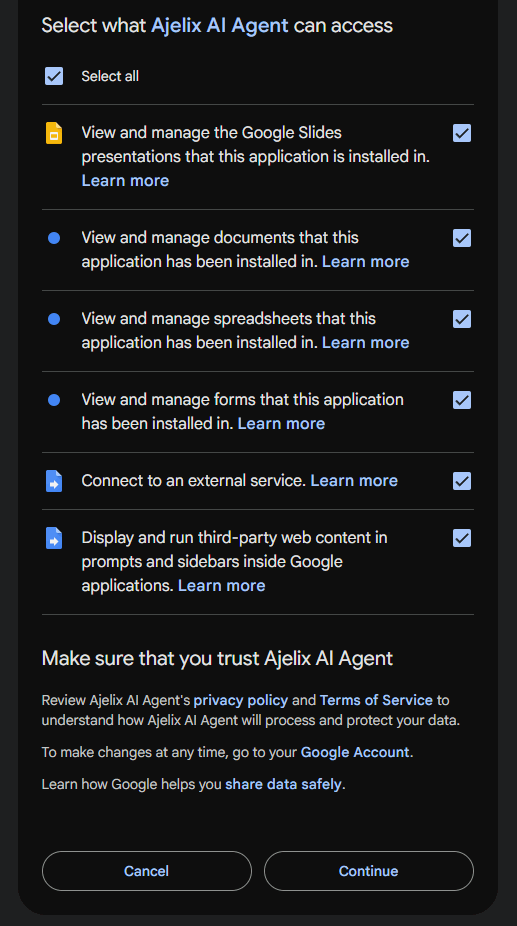
Step 2: Activate the Add-on in Your App
- Open Google Sheets™, Docs™, Slides™, or Forms™
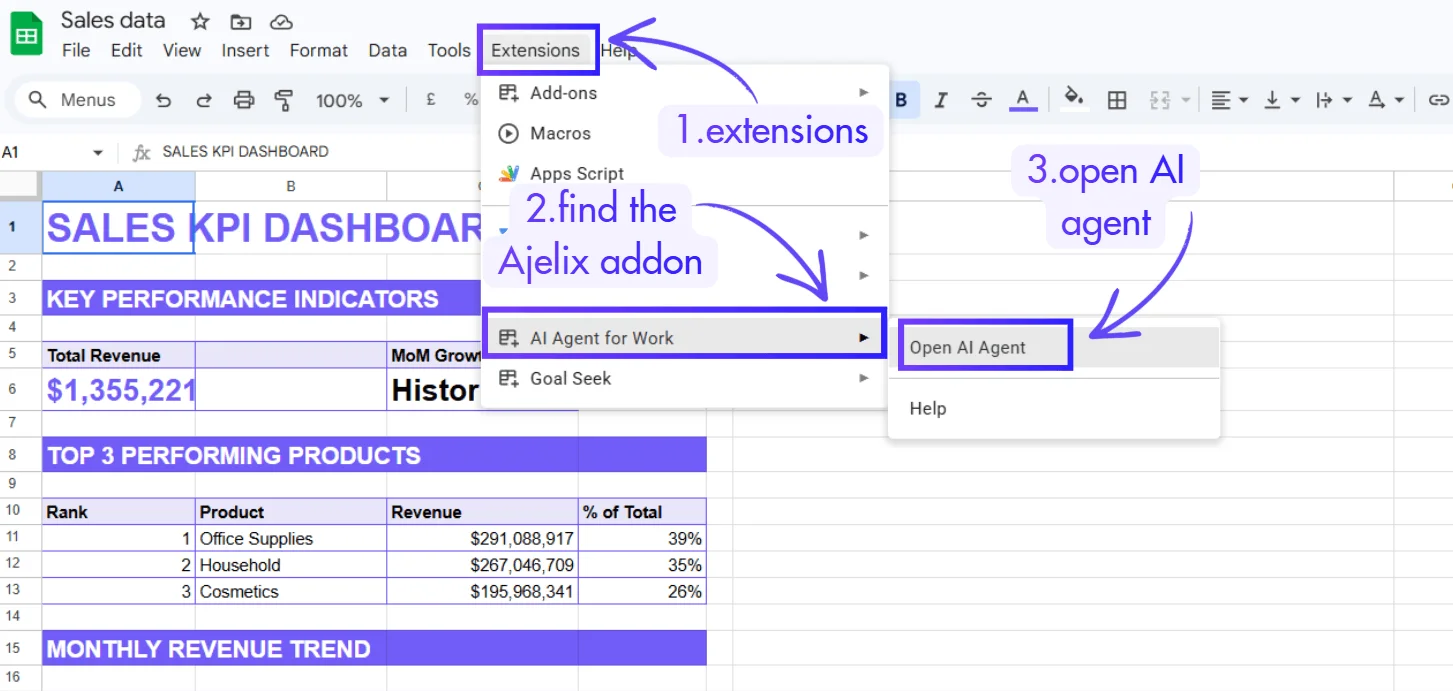
- Click Extensions in the top menu
- Find an AI Agent for Work by Ajelix and click Open
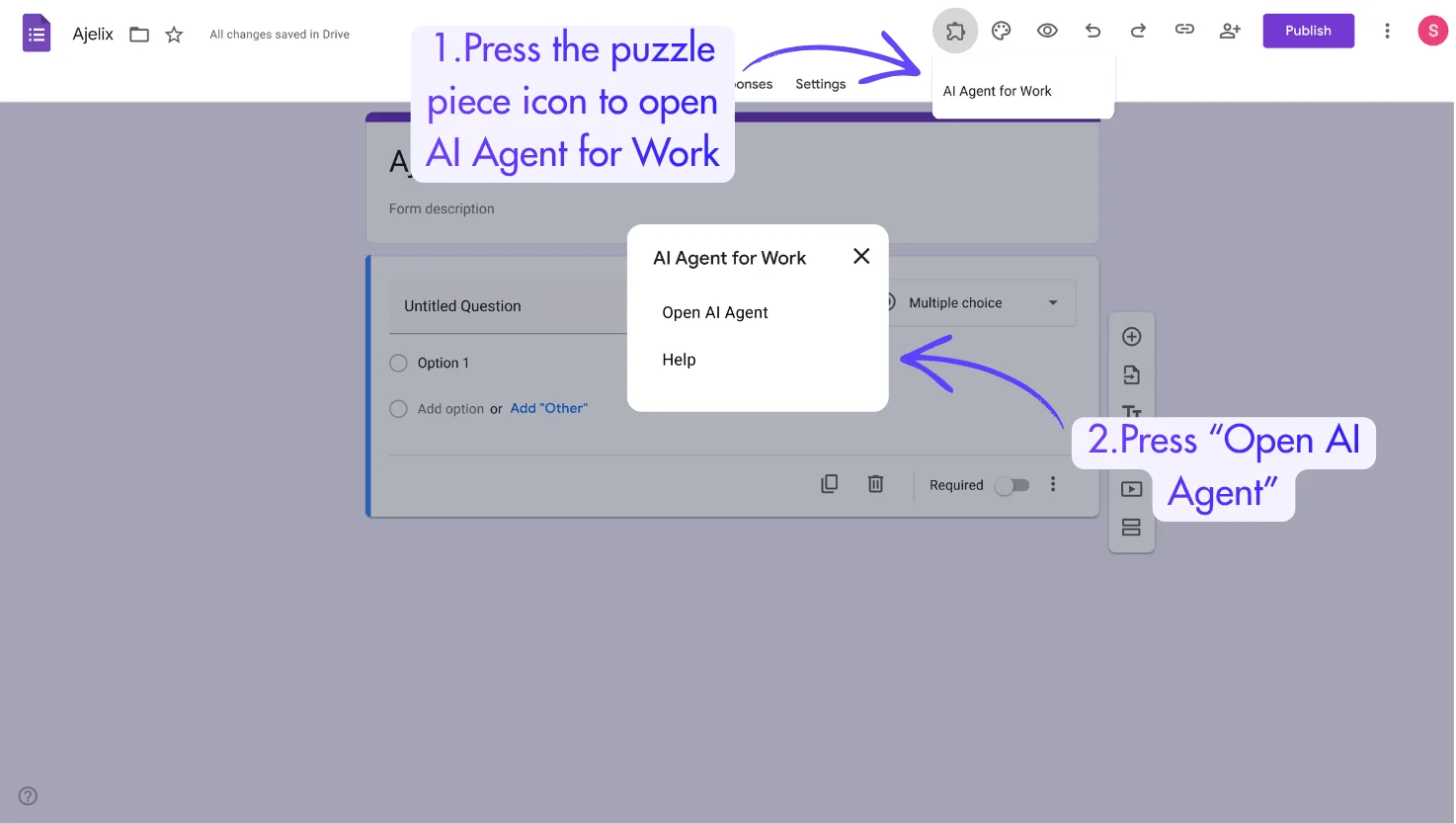
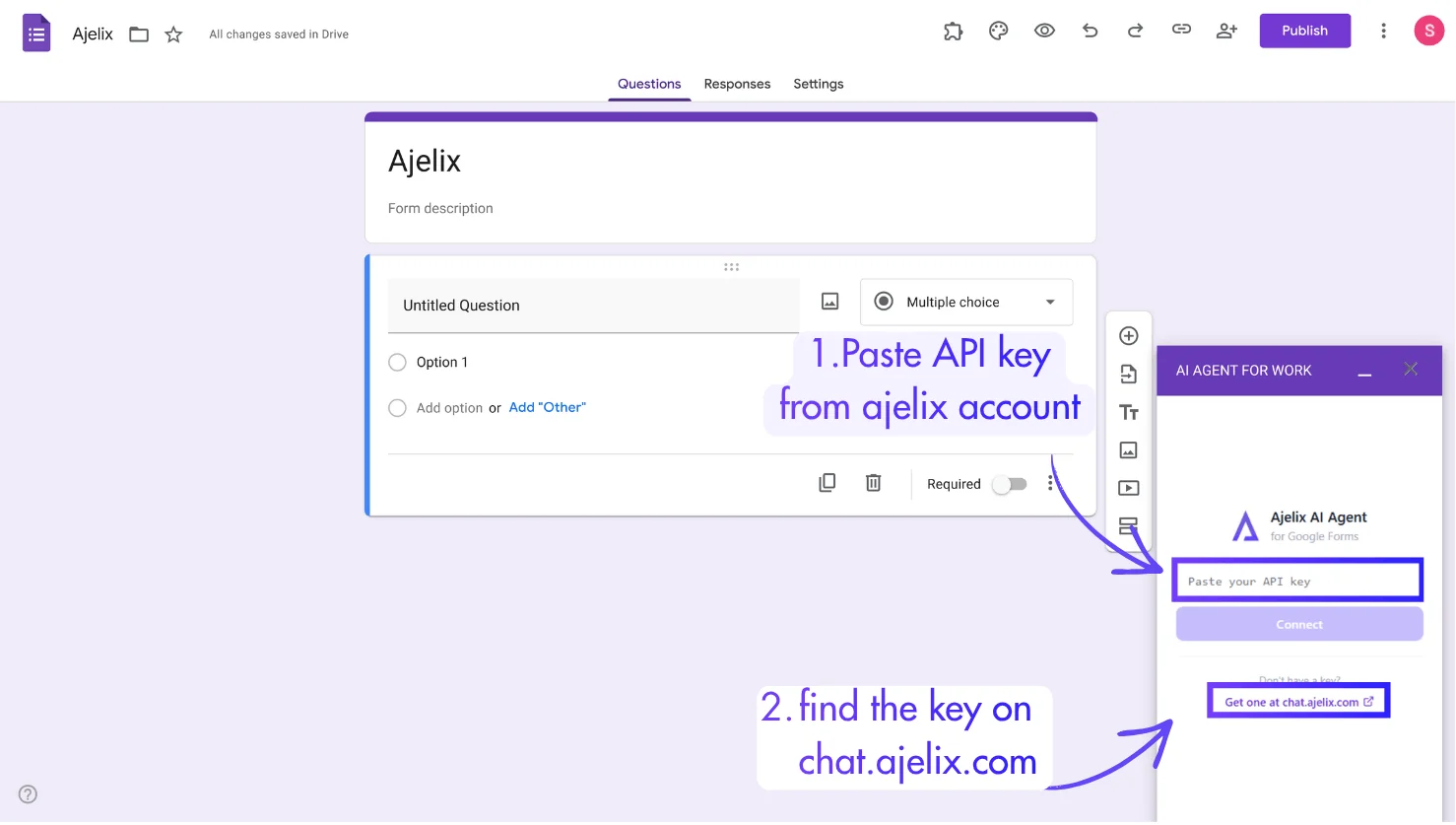
You can activate the add-on in Google Forms™ the same way as in Sheets™, Docs™, and Slides™ – the Extensions button just looks a little different.
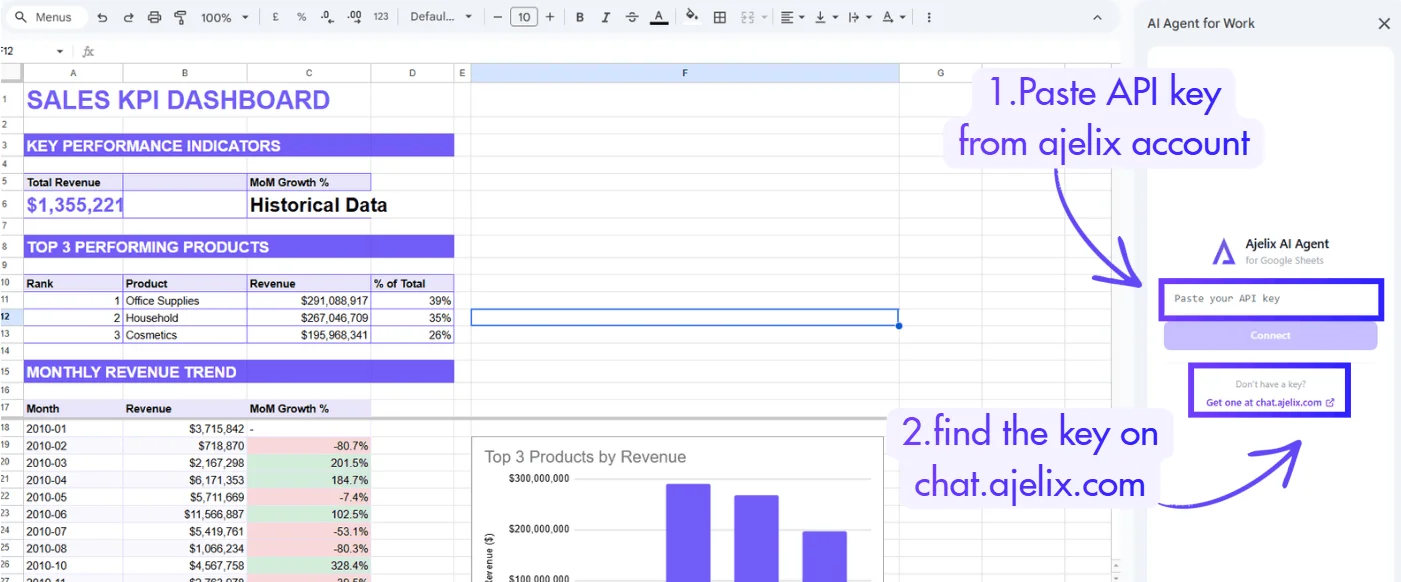
4. The AI Agent sidebar will appear on the right side of your screen
Step 3: Get Your API Key from Ajelix
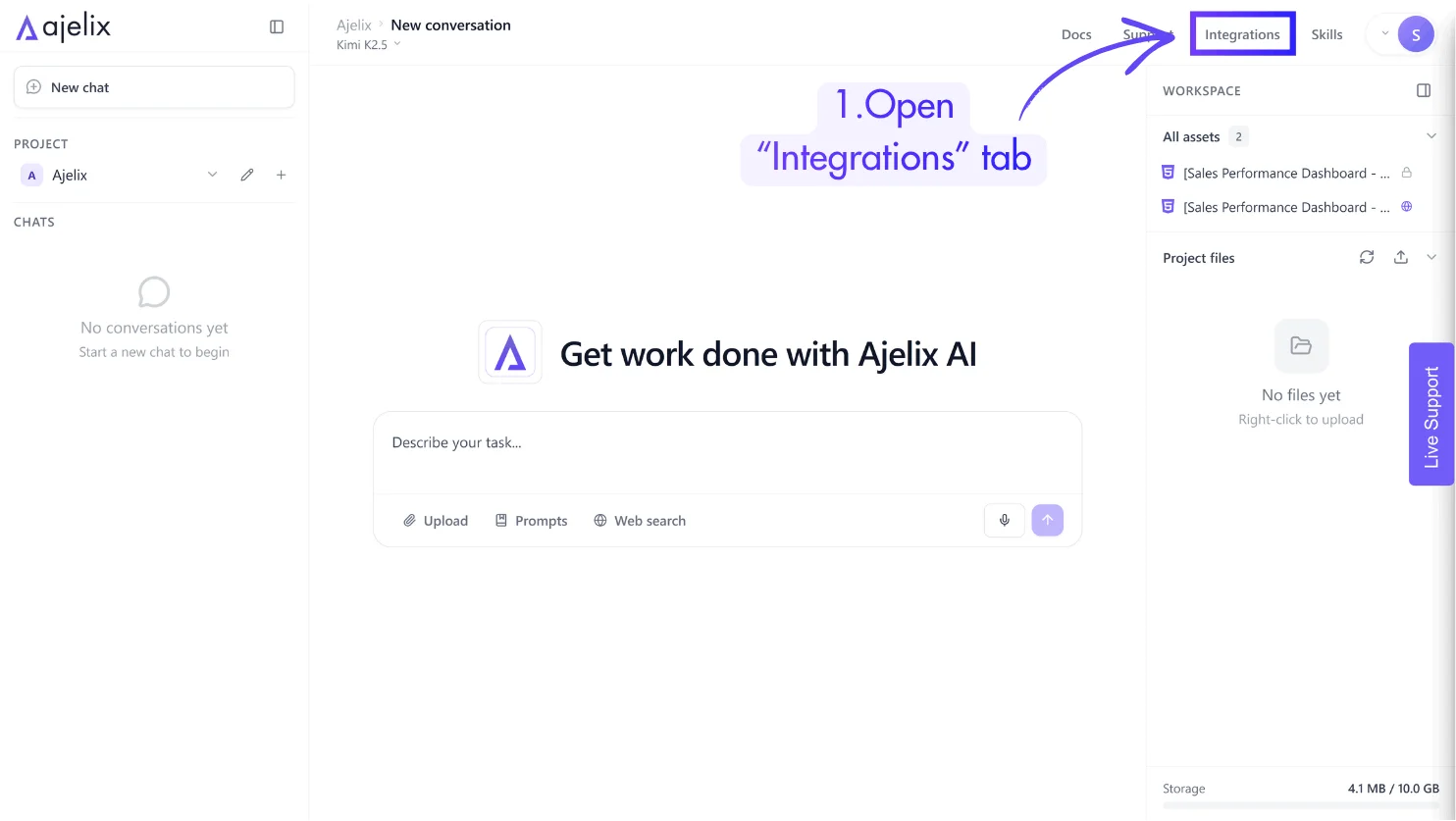
- Go to your Ajelix chat profile
- Navigate to your Integrations tab
3. Copy your API key
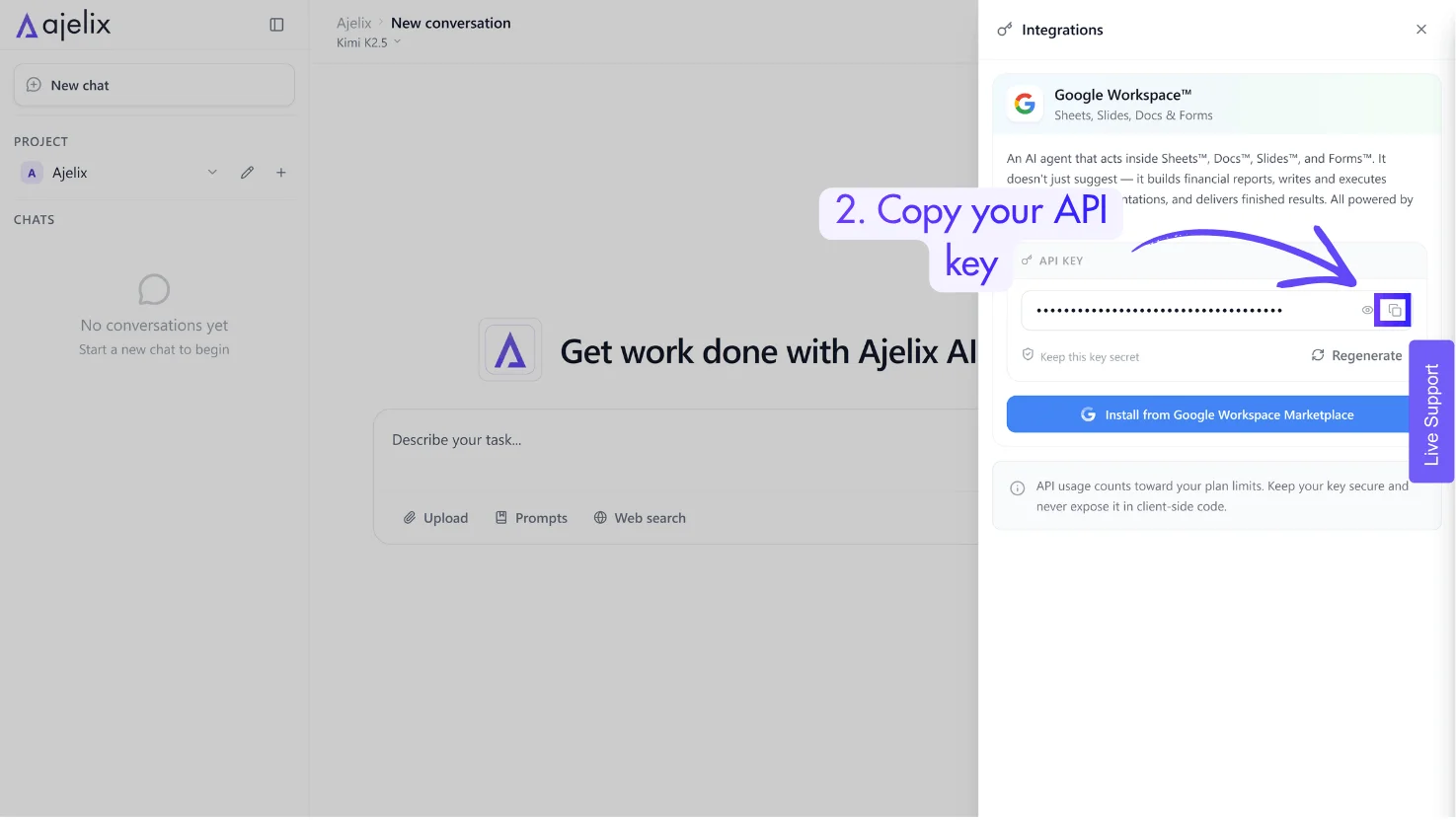
4. Paste it into the add-on sidebar
You’re All Set!
Ajelix Agent can now interact directly with your Google Workspace™ files. Try prompts like:
| App | Try This Prompt |
| Google Sheets™ | “Build a cash flow analysis with dynamic formulas and a dashboard” |
| Google Docs™ | “Write an executive summary for a quarterly business review” |
| Google Slides™ | “Create a pitch deck for a SaaS startup, 8 slides, professional style” |
| Google Forms™ | “Generate a customer onboarding survey with 10 questions and logic” |
