Get up and running with Ajelix in under 2 minutes. This guide covers the basics of sending your first query, understanding responses, and phrasing prompts for the best results.
If you prefer video, watch our founder give tour of the Ajelix:
1. Send Your First Message
Ajelix operates in agentic chat mode. Describe what you need – whether it’s a quick answer, file analysis, multi-step automation, or content creation and Ajelix handles it automatically.
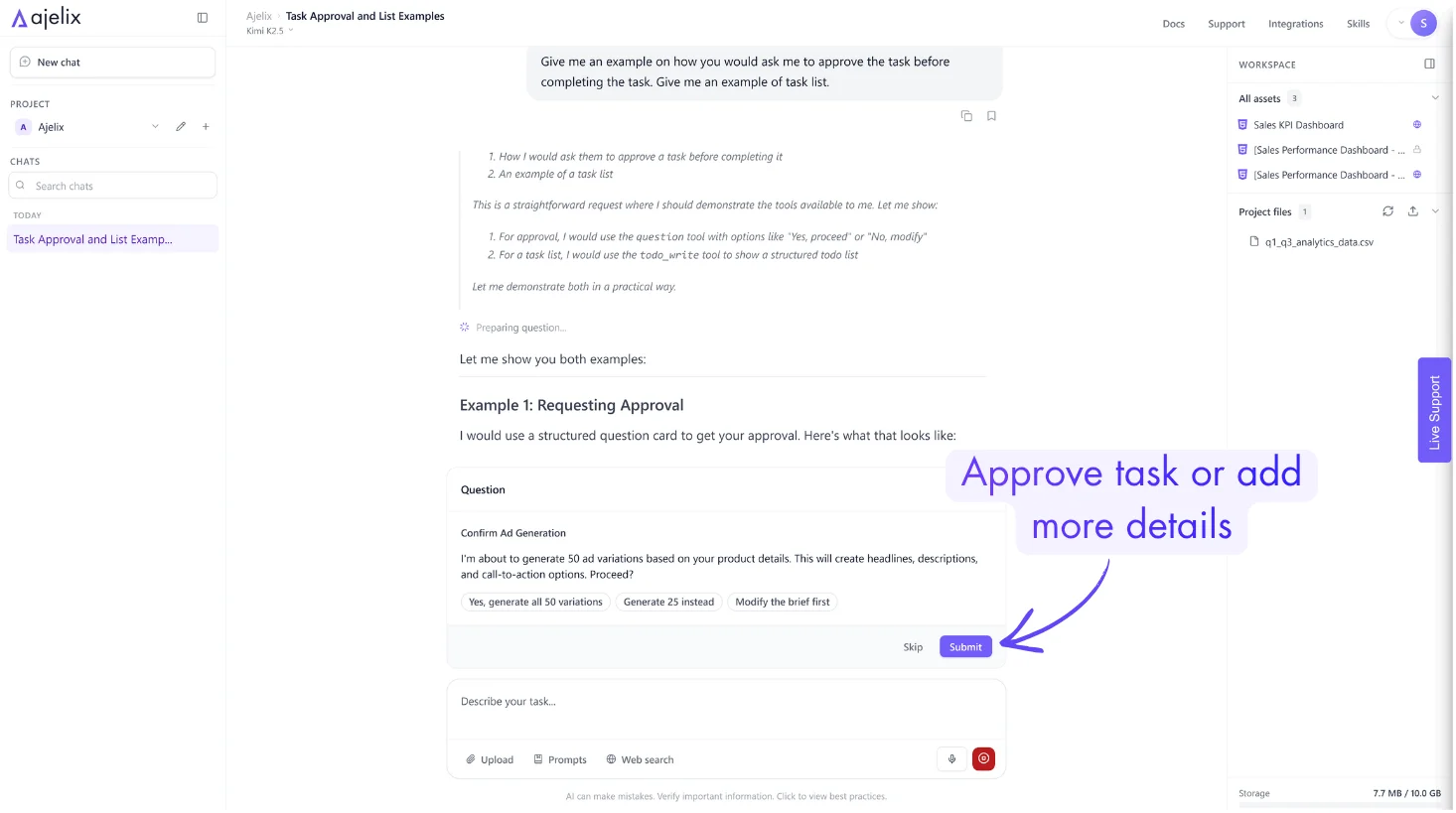
Tip: AI agent creates a plan before executing. You’ll review it first, then approve to proceed. It will look like this:
2. Upload Files (Optional)
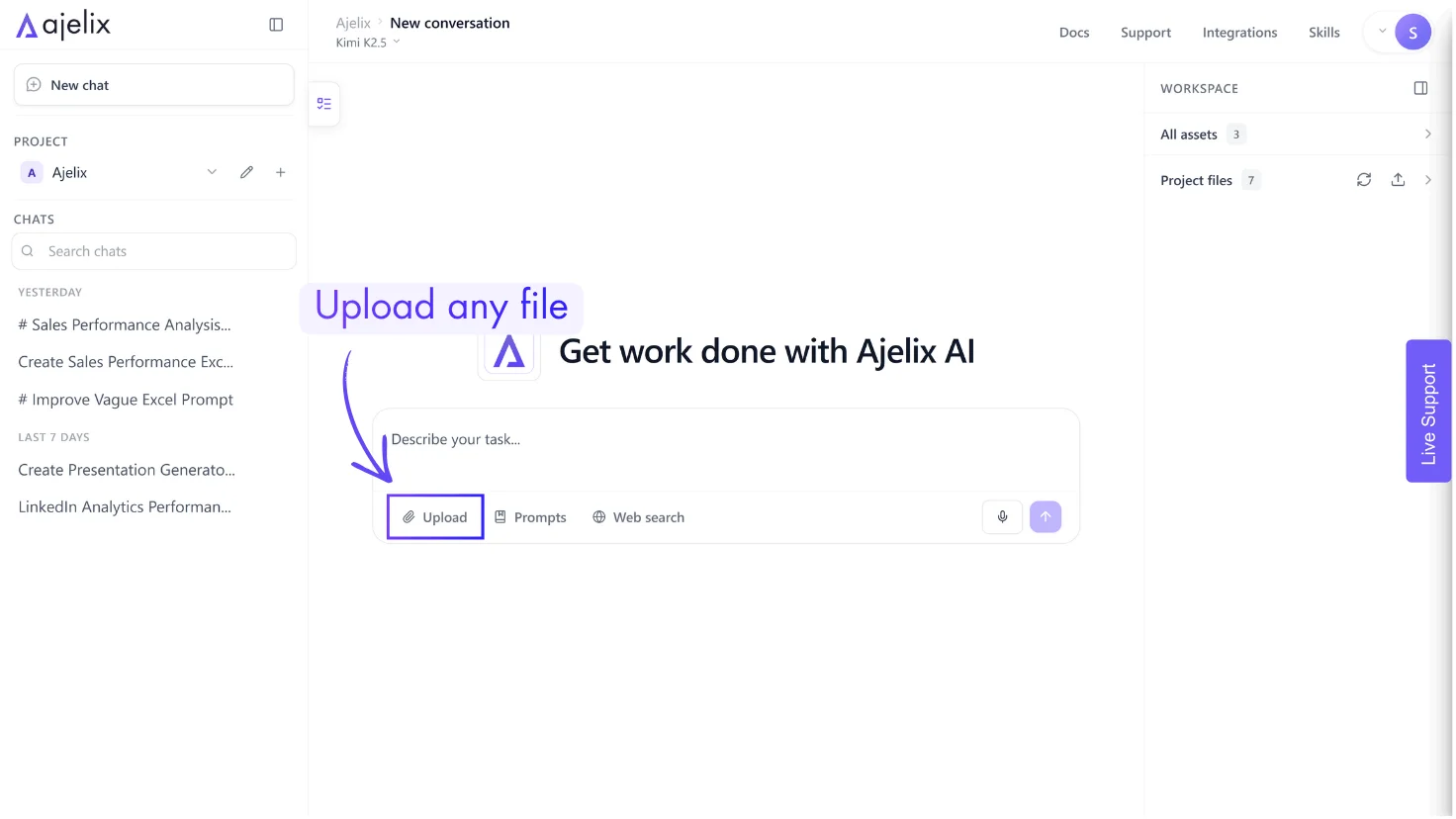
Attach files to analyze or transform them. Supported formats:
- Spreadsheets: .xlsx, .xls, .csv, Google Sheets links
- Documents: .docx, .pdf
- Presentations: .pptx
- Images: For OCR/text extraction
Click the attachment icon and explain what you want do with the file in your prompt.
3. Phrase Your Prompt Effectively
The way you ask determines the quality of output. For better output use this formula:
[Action] + [Subject] + [Format] + [Constraints]
Best practices on how to prompt:
| Less Effective | More Effective |
| “Make a chart” | “Create a bar chart showing Q1-Q4 sales from the attached Excel file. Use blue theme, save as PNG.” |
| “Write code” | “Write a Python script that reads CSV files and outputs a summary table. Include error handling.” |
| “Fix this” | “Debug this Python script: [paste code]. It’s returning IndexError on line 15.” |
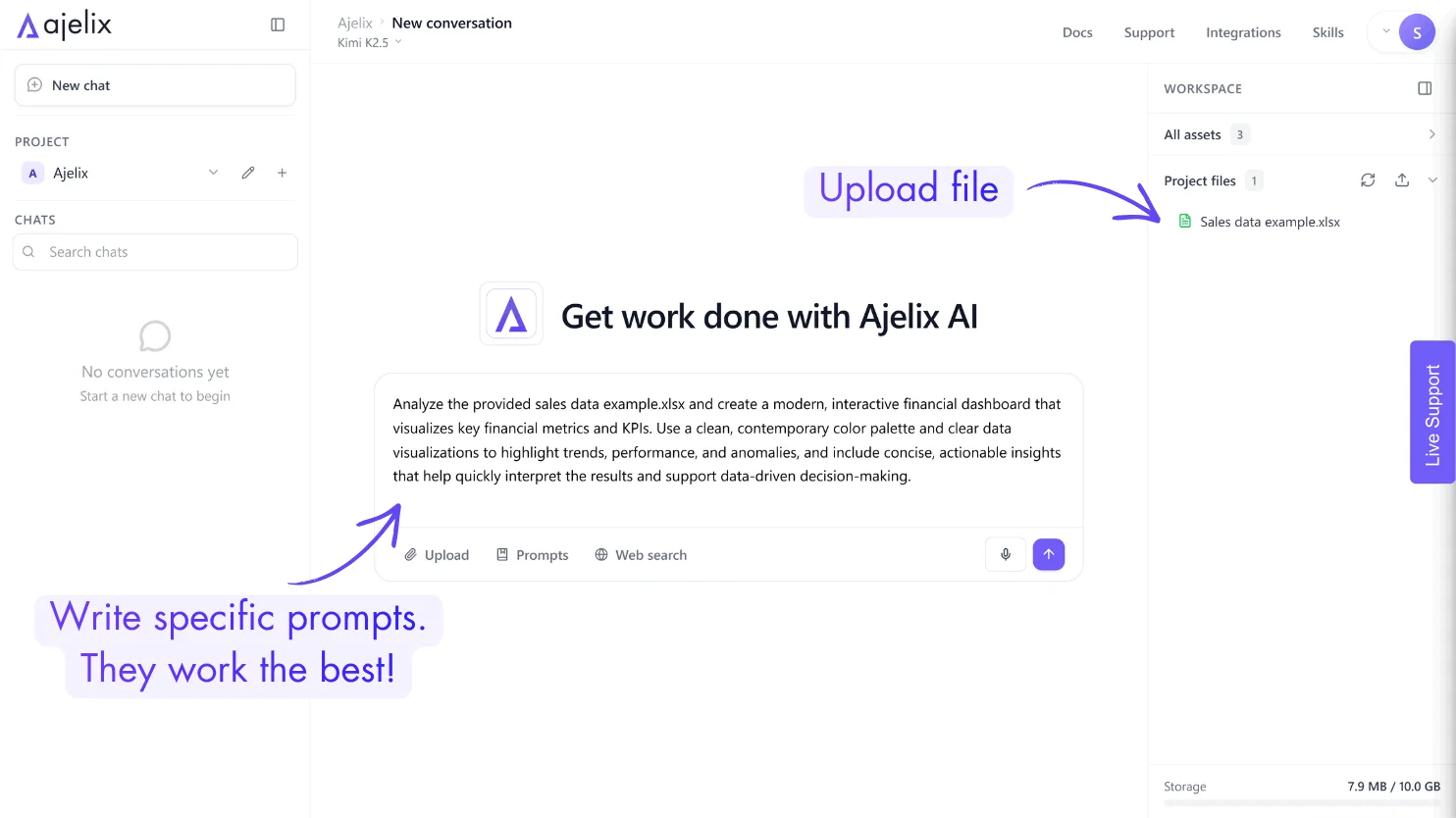
- Specify format early: “Create a table comparing…” / “Generate Python code for…” / “Build an interactive dashboard showing…”
- One request at a time: Complex multi-part questions work better split into separate messages
- Provide context: Sample data, expected output, or constraints improve accuracy
- Iterate: If the first response isn’t perfect, add detail or rephrase
4. Understand the Response
Ajelix returns different output types depending on your request:
| Output Type | What You’ll See | Preview |
|---|---|---|
| Text/Markdown | Formatted answers, lists, code blocks, tables | 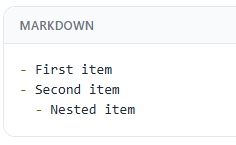 |
| Files | Downloadable Excel, Word, PDF, or CSV files in the output panel |  |
| Visual Assets | Interactive charts, dashboards, apps, or diagrams rendered directly in chat |  |
| Plans | Step-by-step execution plans (Agent mode) awaiting your approval |  |
Downloading: Click any file in the output panel to download. Visual assets can also be published and shared via link.
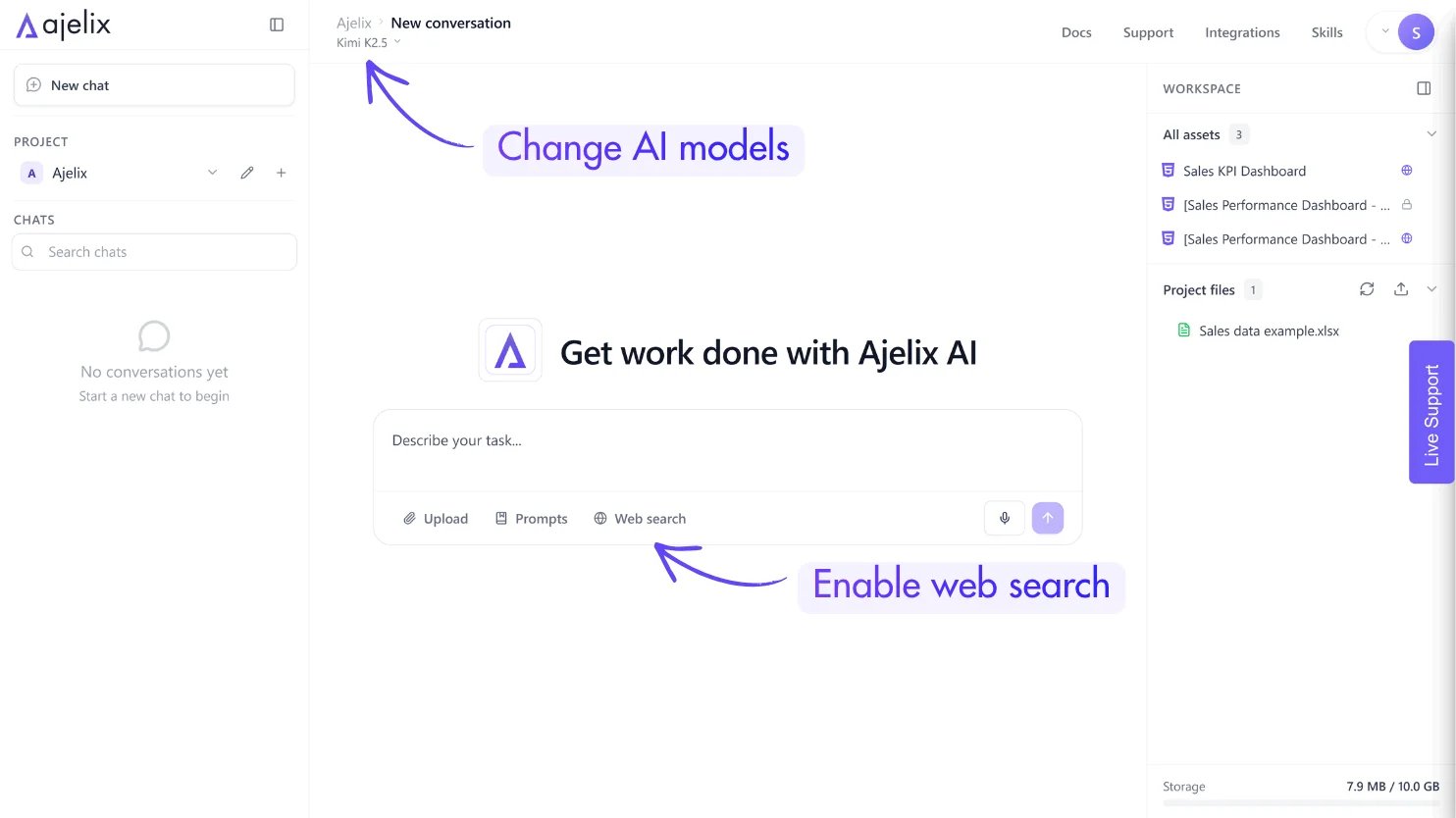
5. Enable Features When Needed
| Feature | How to Enable | Use Case |
| Web Search | Toggle in settings | Current events, recent data, fact-checking |
| AI Agent | Choose preferred AI model in setting | File processing, multi-step workflows, code execution |
6. Next Steps
Now that you have an overview of the interface, write any prompt to Ajelix.
- Analyze data: Upload a CSV and ask “Show me summary statistics and create a chart”
- Generate a document: “Create a project proposal template in Word format”
- Build something visual: “Make an interactive to-do list app in HTML”
- Process a file: “Convert this PDF to structured Excel data”
Quick Reference
| Shortcut/Action | Description |
| Enter | Send message |
| Shift + Enter | New line in input |
| Edit message | Click pencil icon to modify and regenerate |
| Branch chat | Edit any previous message to explore alternatives |
| Retry chat | Resend the same message |
